
← All guides
Use History, the Change Log and Visual Timeline
Every scan is kept so EPIC can tell you what changed, when, and show it side by side.
- 1
Save a site
Each Quick Scan saves the site. Scheduled monitoring and competitors are under Saved Websites & Monitoring.
- 2
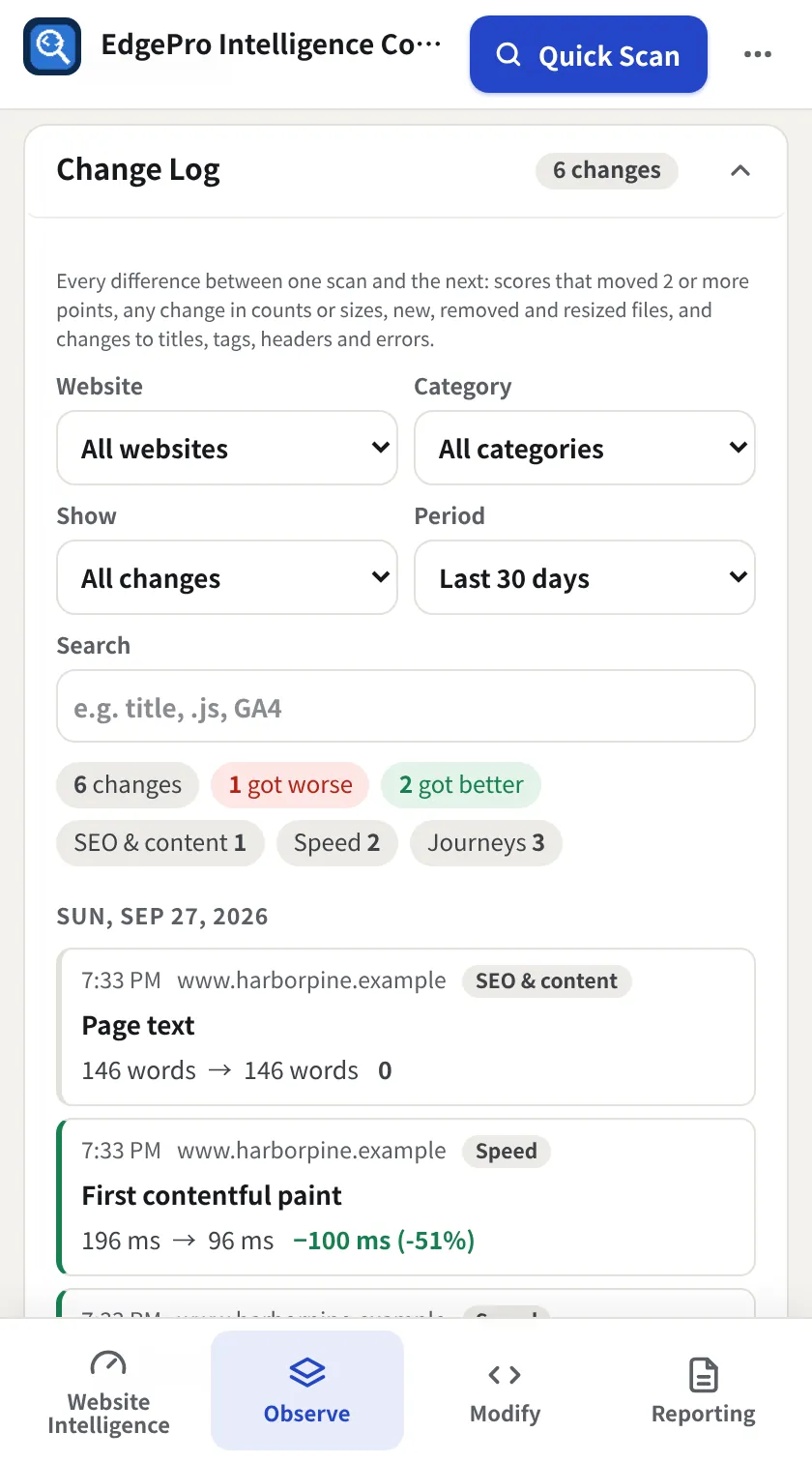
Read the Change Log
Open Change Log. Filter by website, category, what changed, period or text. Each entry shows before → after and whether it got better or worse.
- 3
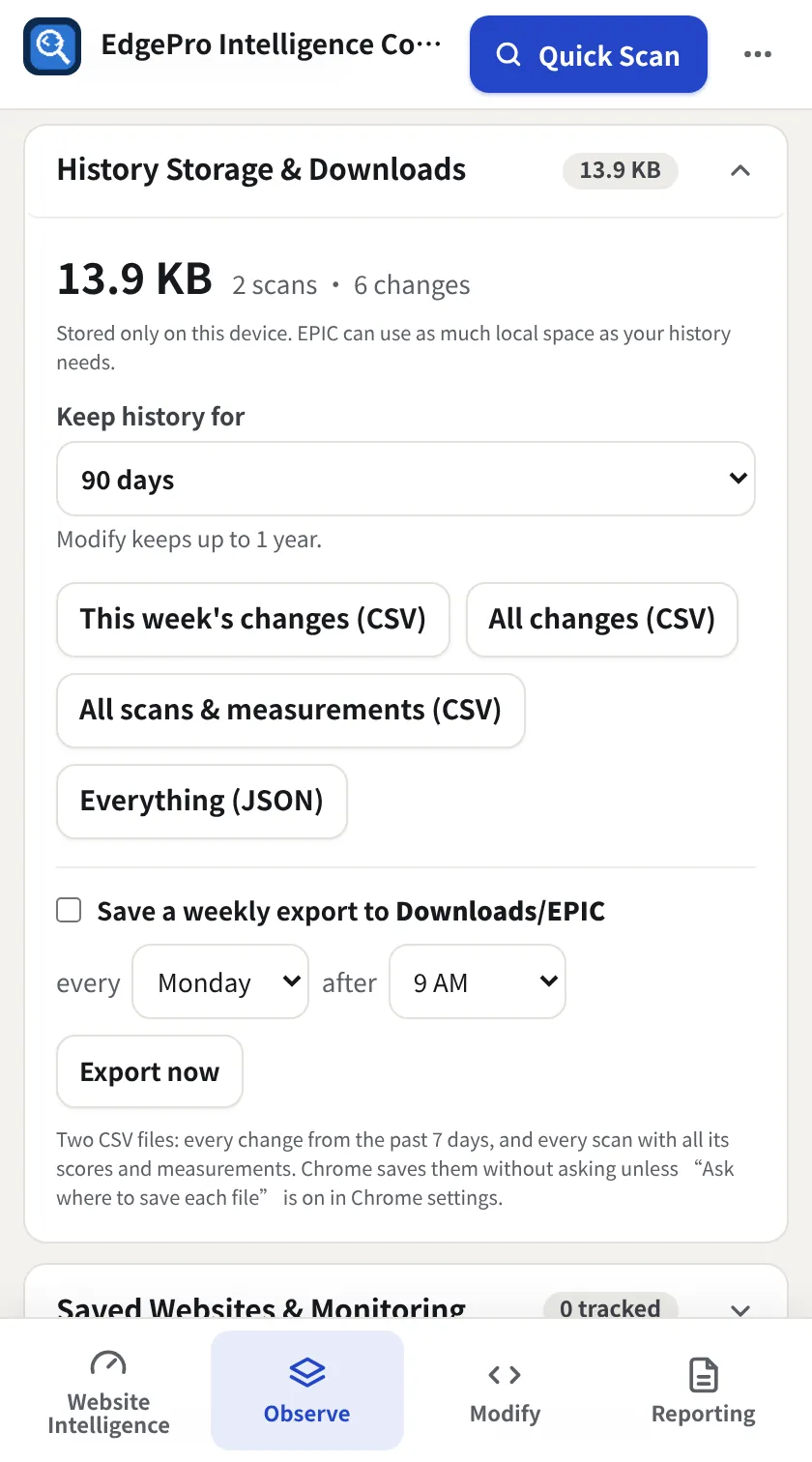
Download
Open History Storage & Downloads for This week's changes (CSV), All changes (CSV), All scans & measurements (CSV) and Everything (JSON). Set how long history is kept, and turn on a weekly export saved to Downloads/EPIC.
- 4
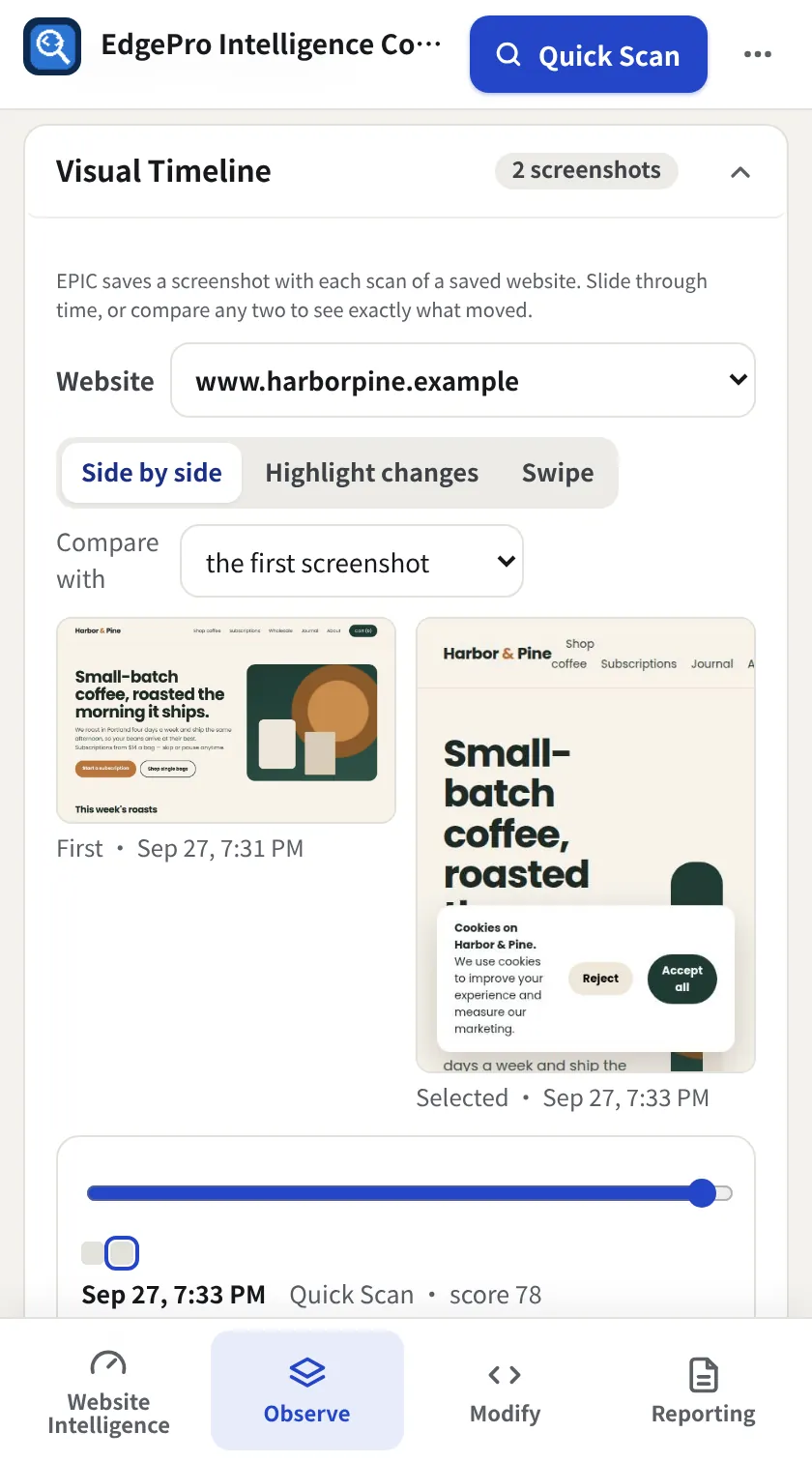
Visual Timeline
Open Visual Timeline for a screenshot from each scan. Compare any two with Side by side, Highlight changes or Swipe, and slide through time.
- 5
Weekly digest
The digest summarises the week across all your sites.
Good to know
- Observe keeps 30, 60 or 90 days; Modify up to a year. EPIC warns you before anything is removed.