
← All guides
Run your first Quick Scan
Quick Scan reloads the page with capture on and builds everything else in EPIC from what it sees.
- 1
Open the page and EPIC
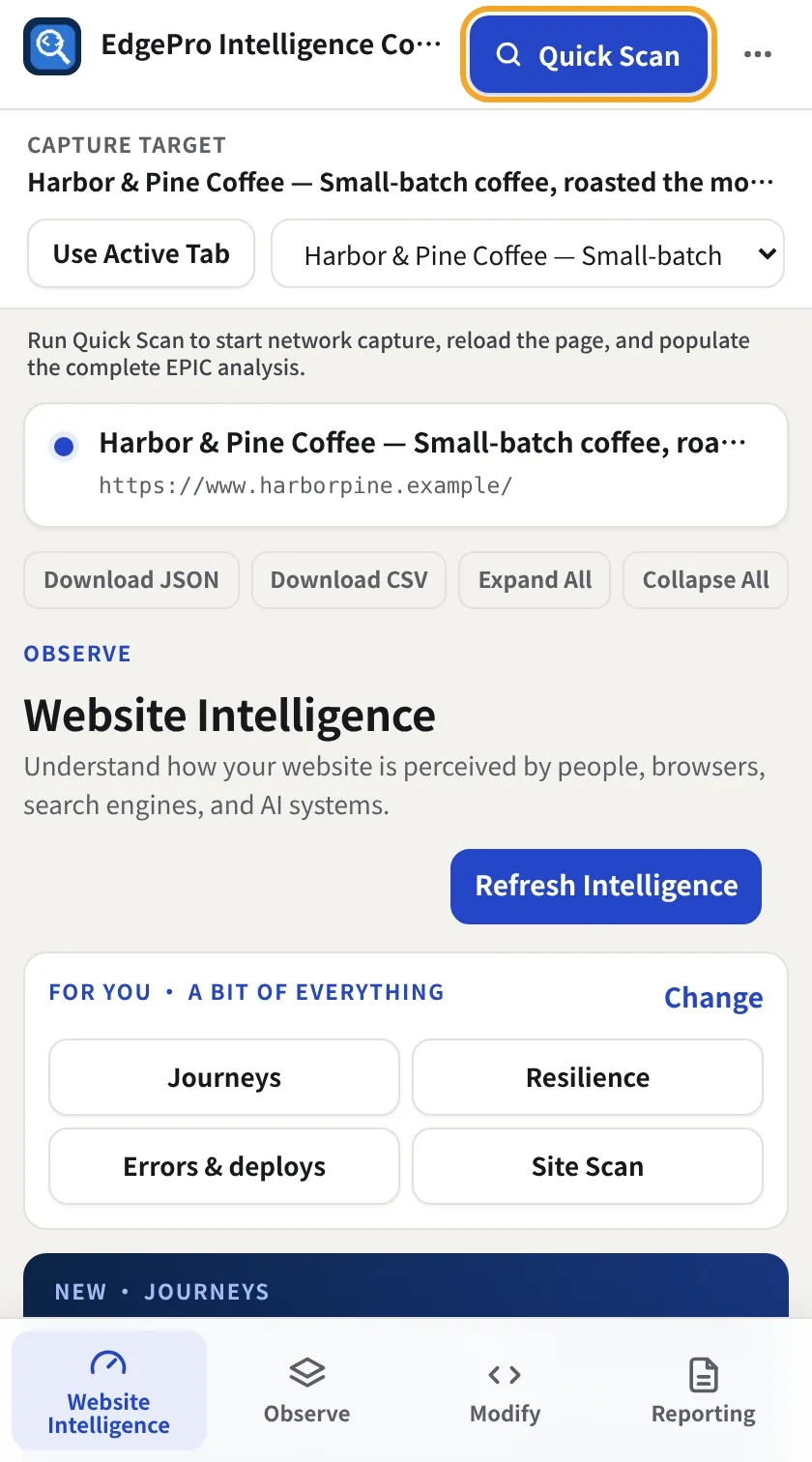
Go to the website you want to check and click the EPIC icon in your toolbar. EPIC opens in the side panel and shows the page under Capture target. Use Use Active Tab if you switched tabs.
- 2
Click Quick Scan
Click Quick Scan (top right). EPIC reloads the page, records every request, header, timing and console message, and reads the page content. It takes a few seconds.
- 3
Check the evidence line
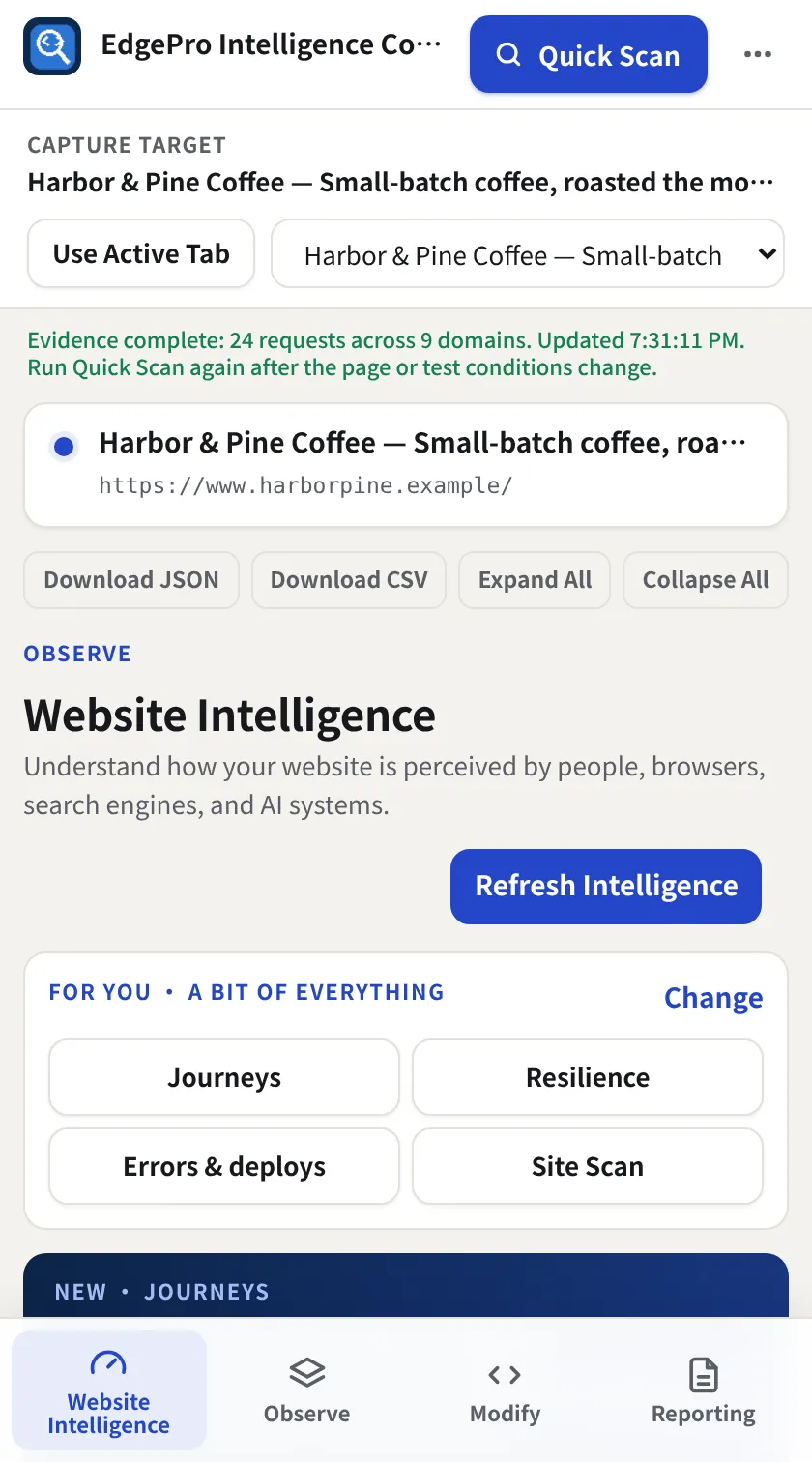
When the green line says Evidence complete with the number of requests and domains, the scan worked. Every tab now uses this capture. Run Quick Scan again after you change the site.
Good to know
- Chrome shows “EPIC started debugging this browser” while the scan runs. That's normal and goes away when capture stops.
- Download JSON / Download CSV at the top of each tab exports that tab's data.
Related guides
Free2 minRead the Website Intelligence summaryOne screen that tells you how ready the site is, what to fix first and where each score comes from.Observe + Reporting3 minUse the Intelligence tabsTwelve focused views, each with a score or count on its tab so you can see where to look before you click.Free1 minEvery download in EPICWhere to find each export. Everything is generated in your browser and saved to your Downloads folder.