
← All guides
Add, change or remove headers
Test a header change in your own browser before anyone touches the server.
- 1
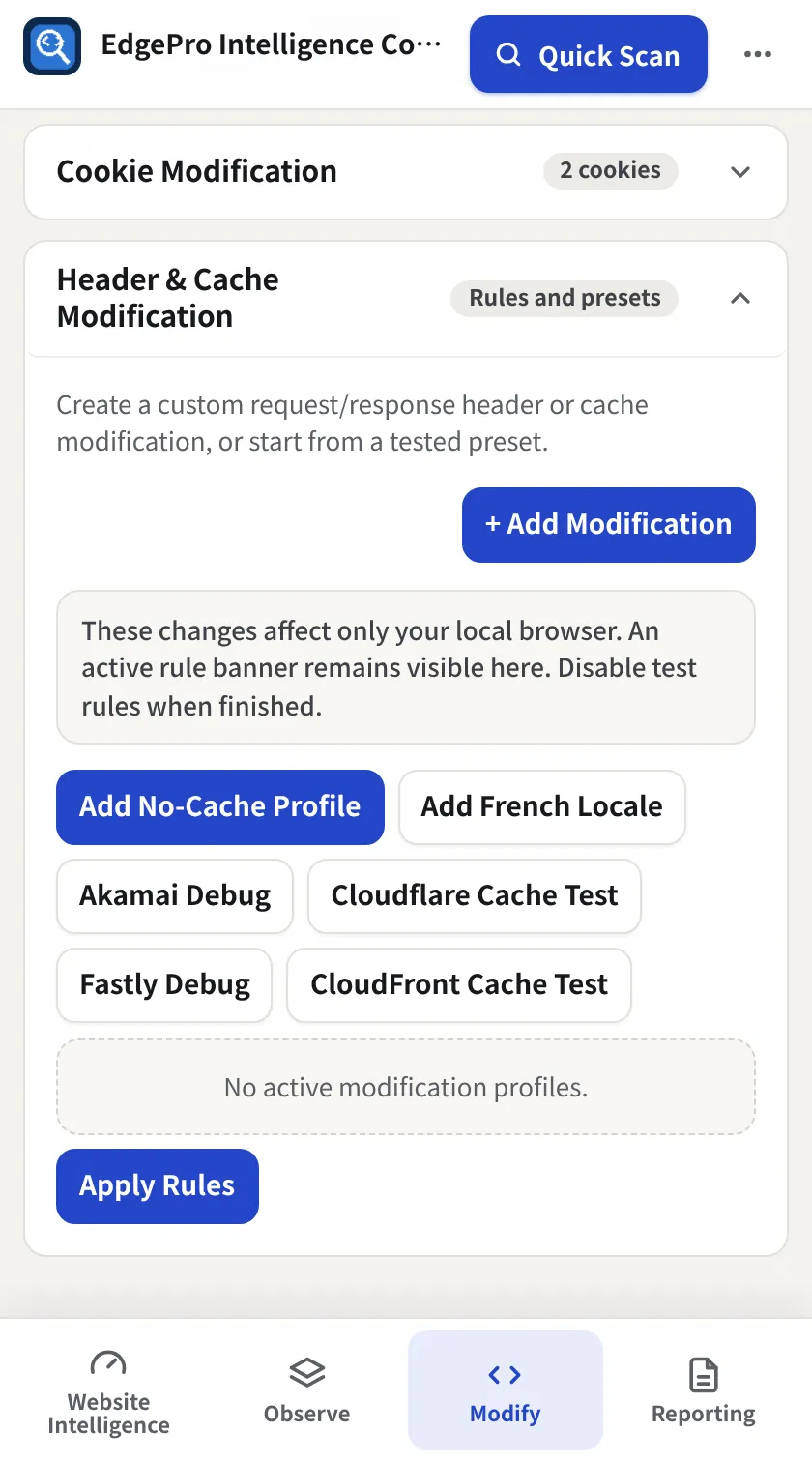
Open Header & Cache Modification
Go to Modify → Headers & Cookies and open Header & Cache Modification.
- 2
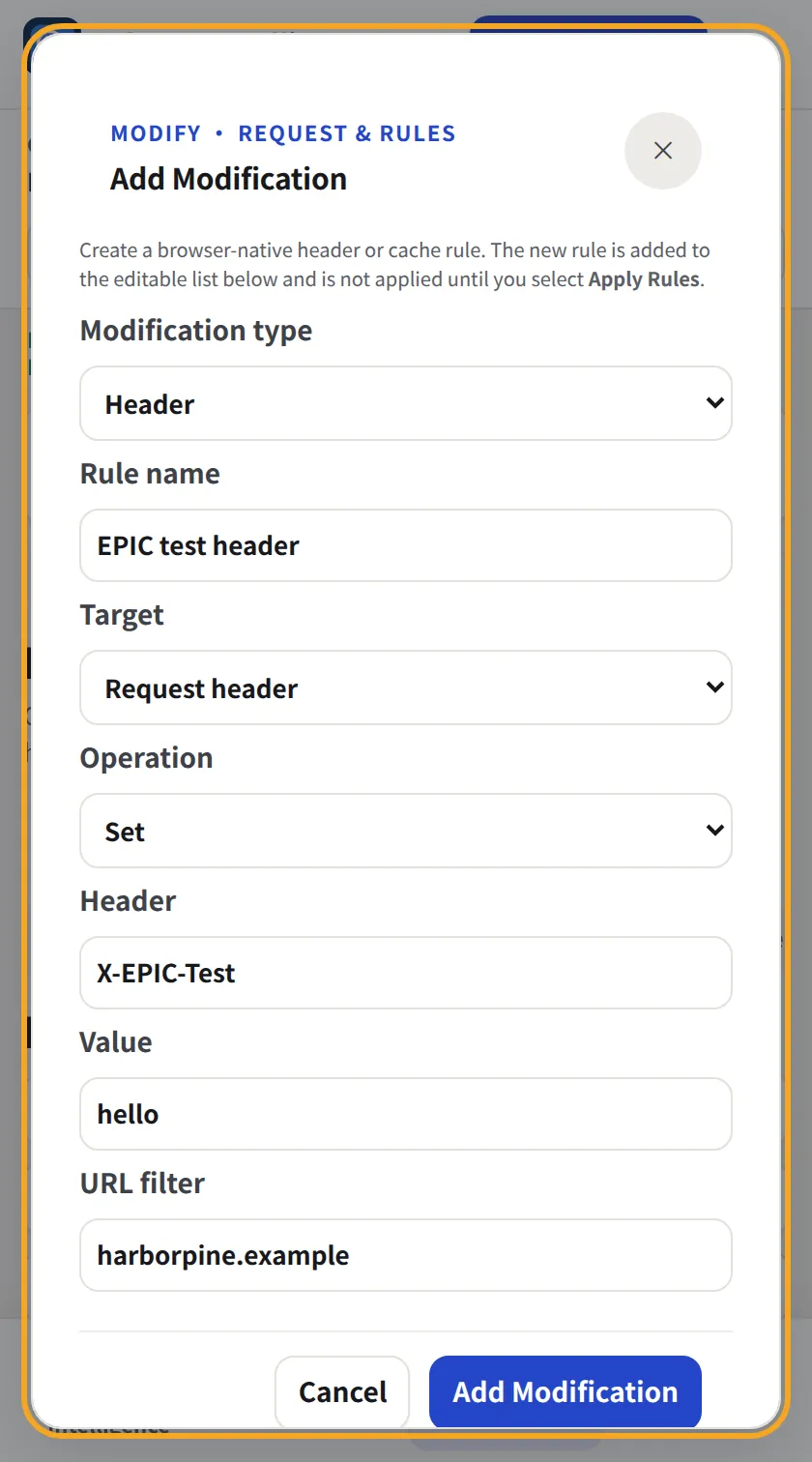
Add a modification
Click + Add Modification. Choose Target (Request header or Response header), Operation (Set, Append or Remove), the Header name and Value, and a URL filter such as your domain. Click Add Modification.
- 3
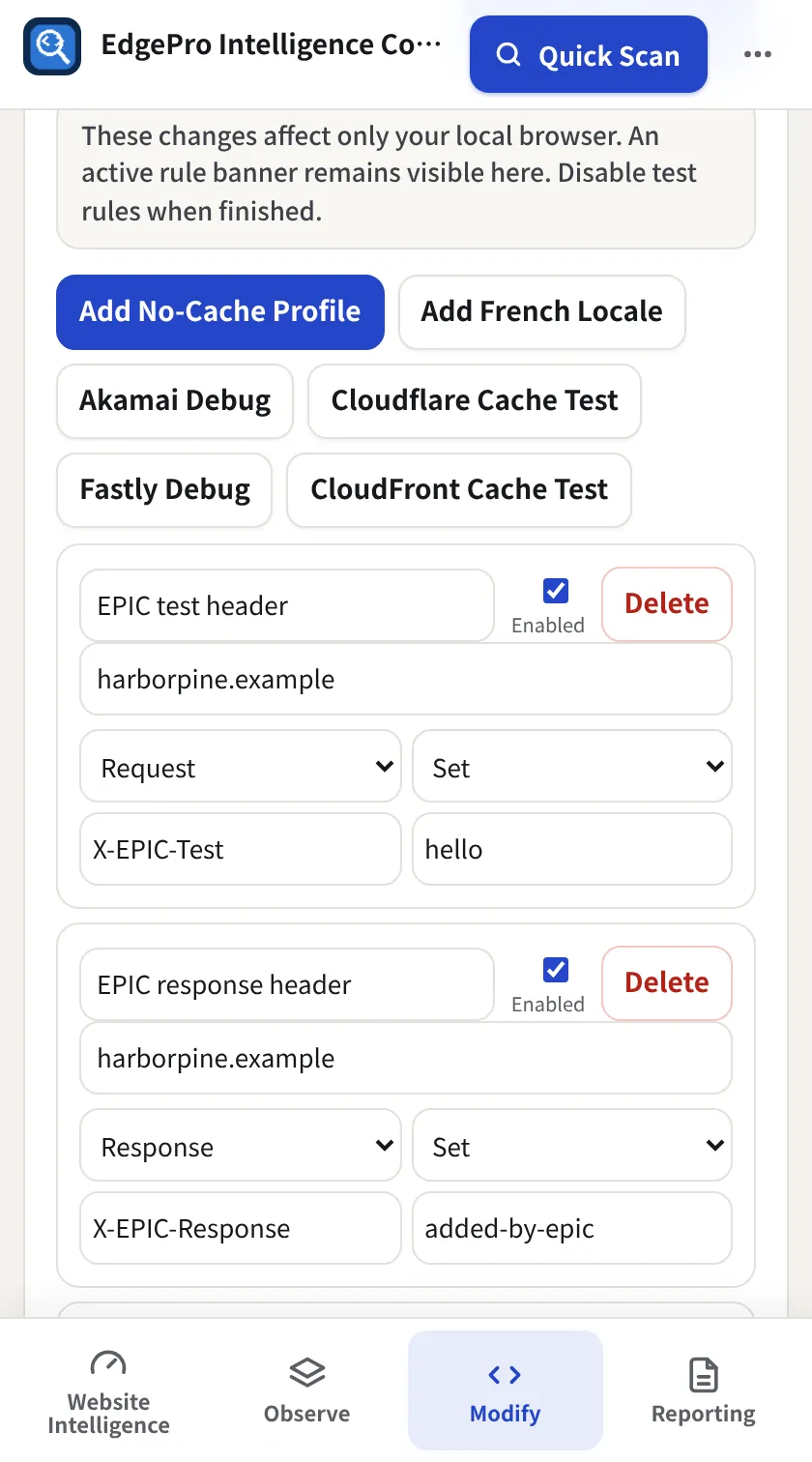
Review and apply
Rules appear in the list, where you can edit, disable or delete each one. Click Apply Rules. EPIC shows a banner while rules are active.
- 4
Check it worked
Reload the page, then look in Observe → Network → a request → Request Headers / Response Headers.
- 5
Turn it all off
Clear Request Modifications removes every rule and restores normal requests.
Good to know
- Rules only affect your browser. Nobody else sees the change.
- Tested: set a request header, add a response header, remove a response header, all verified against the server.