
Change the page live
Edit HTML, CSS and JavaScript, block files and compare before/after without changing the real site.
- 1
Edit HTML
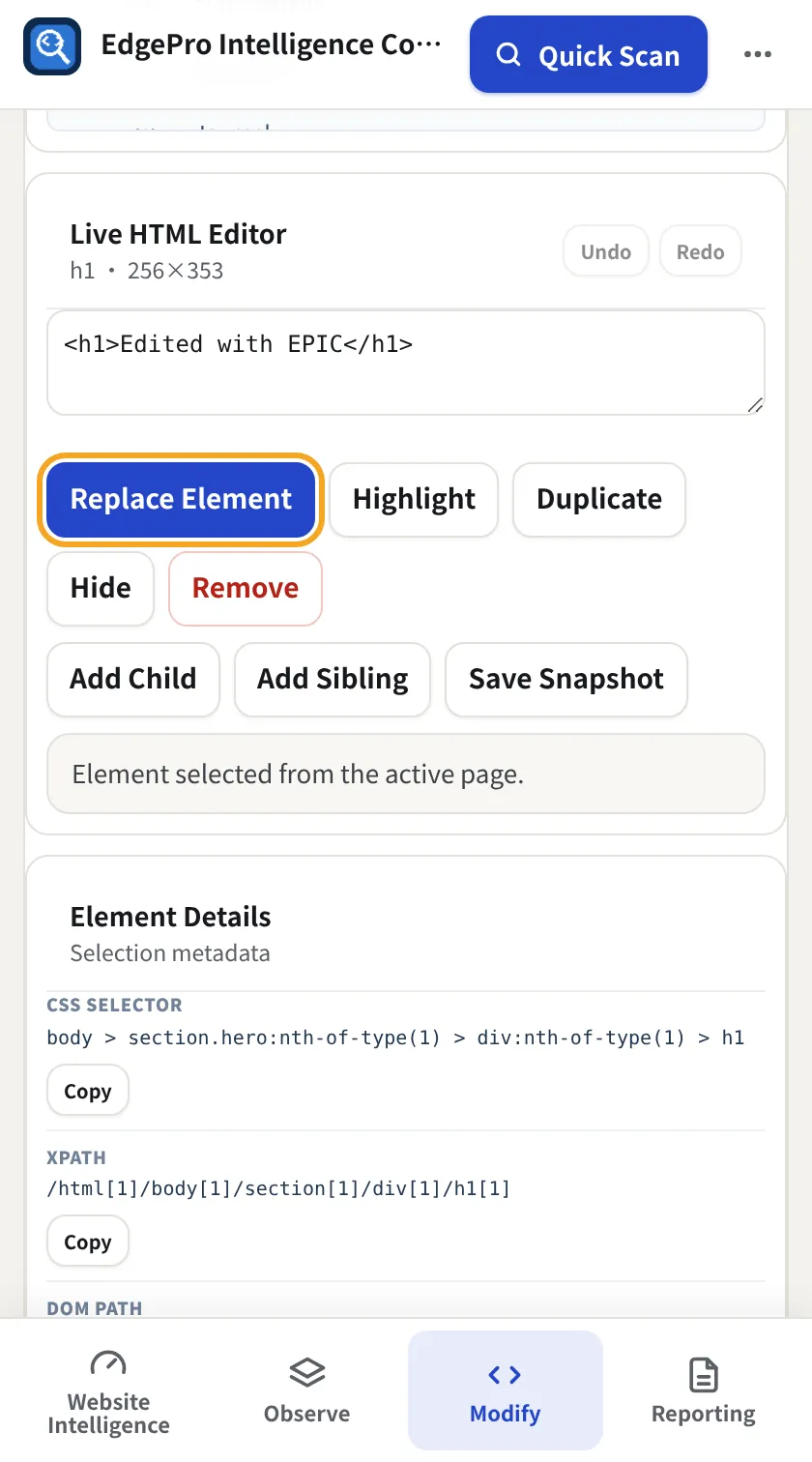
Go to Modify → Page Changes → HTML / DOM. Click Inspect Element and pick something on the page (or use Advanced selector → Load Selector). Edit in the Live HTML Editor and click Replace Element. Hide, Remove, Duplicate, Undo and Redo are alongside.
- 2
Try CSS
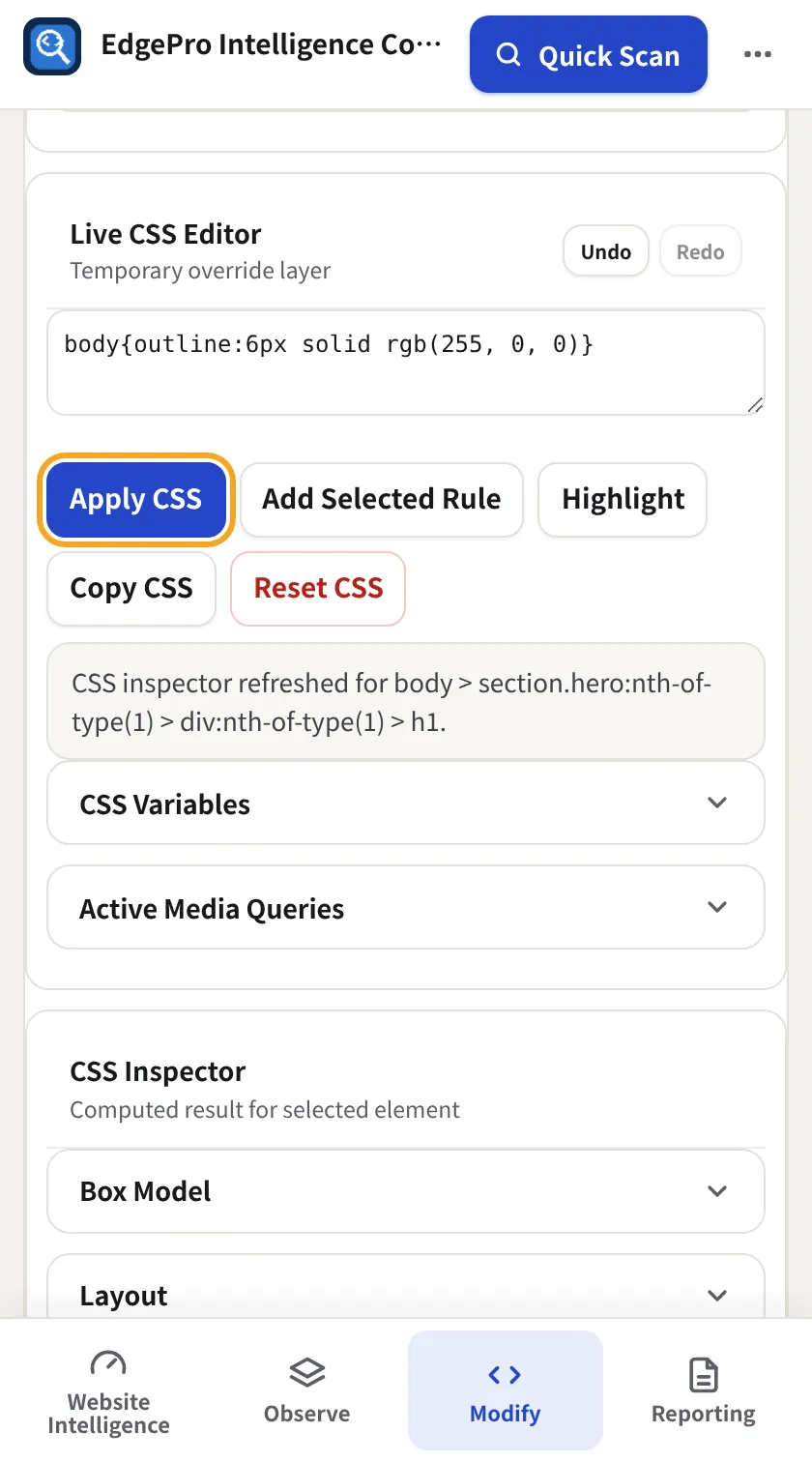
In CSS, write rules and click Apply CSS. Reset CSS removes them.
- 3
Allow user scripts (first time only)
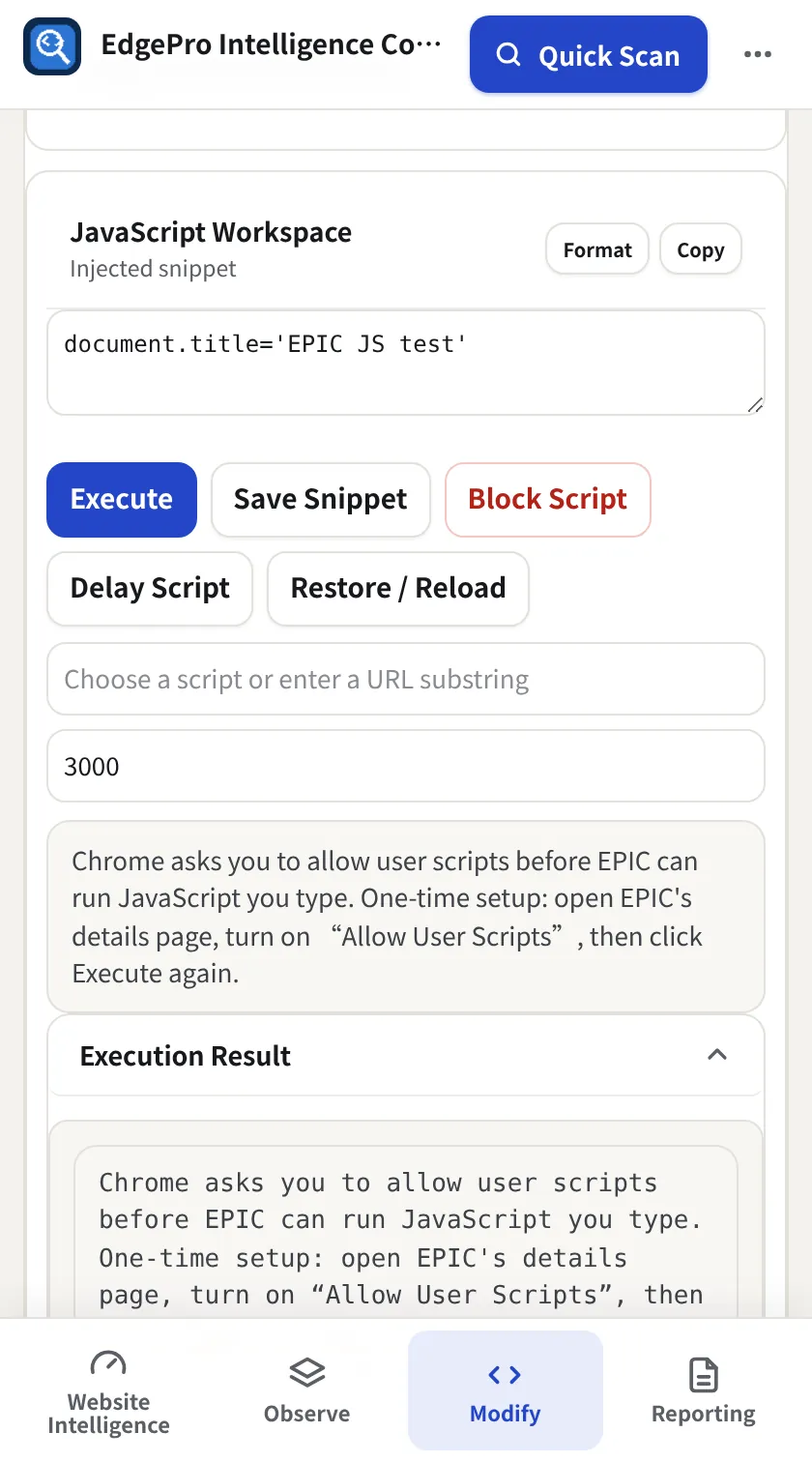
In JavaScript, write code and click Execute. The first time, your browser asks you to allow user scripts for EPIC. That's how Chrome and Edge let extensions run code you type. Click Open EPIC's details page, turn on Allow User Scripts, and come back.
- 4
Run JavaScript
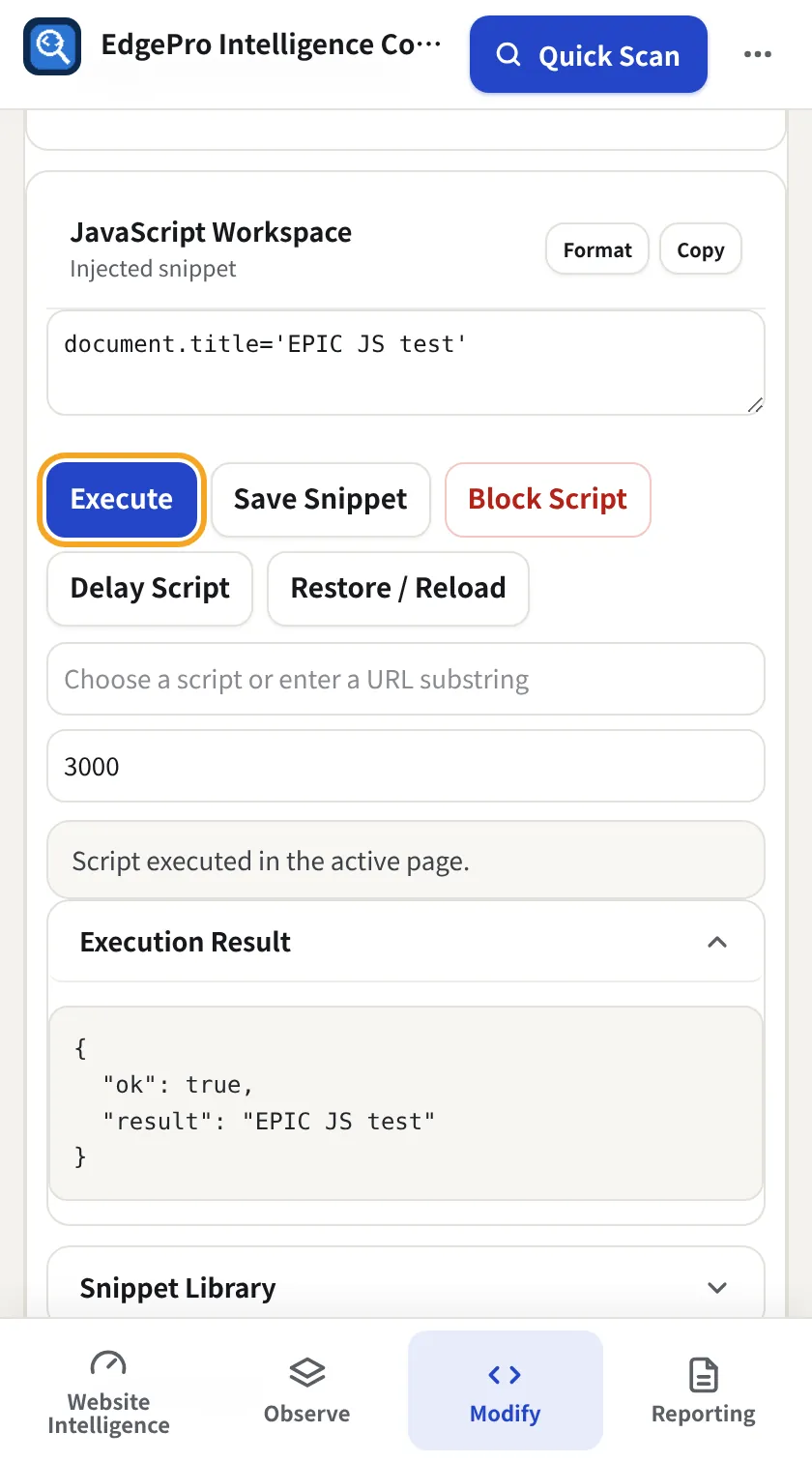
Click Execute again. The script runs only on the page you're testing, and the result appears under Execution Result. Save Snippet keeps scripts you use often.
- 5
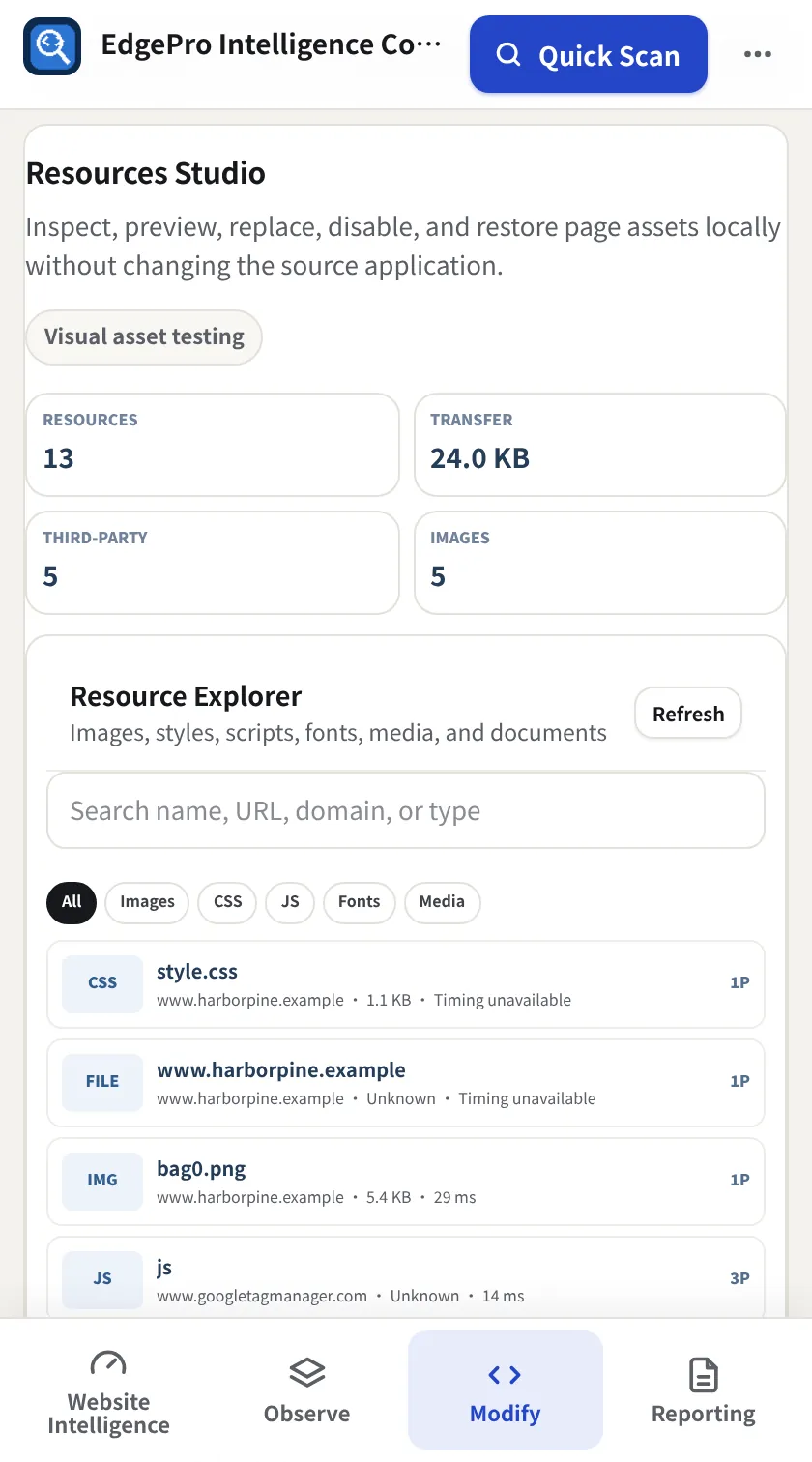
Block or replace files
In Resources, pick a file in the Resource Explorer and click Disable to see the page without it, or paste a URL / choose a local file and Apply Replacement. Restore Page reloads the original. Download saves the file.
- 6
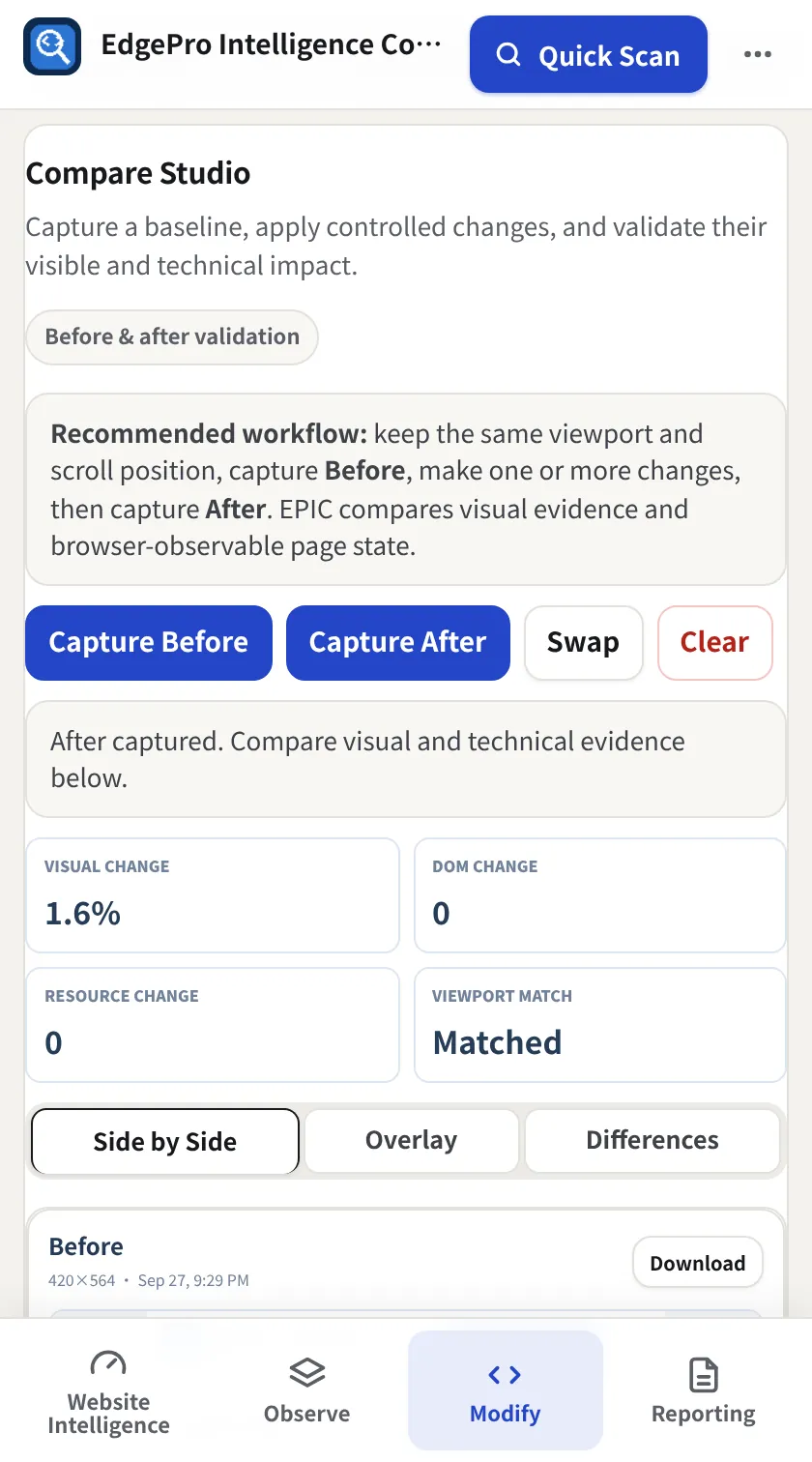
Compare before and after
In Compare, click Capture Before, make your changes, then Capture After. See the visual change %, DOM and resource changes, and view Side by Side, Overlay or Differences. Download either image.
- Reset Page reloads the original page at any time. Changes are never saved to the real site.