
Record and check a journey
Record a contact form, sign-up or checkout once. EPIC re-checks it and tells you if it passed, changed or broke, without ever sending the form.
- 1
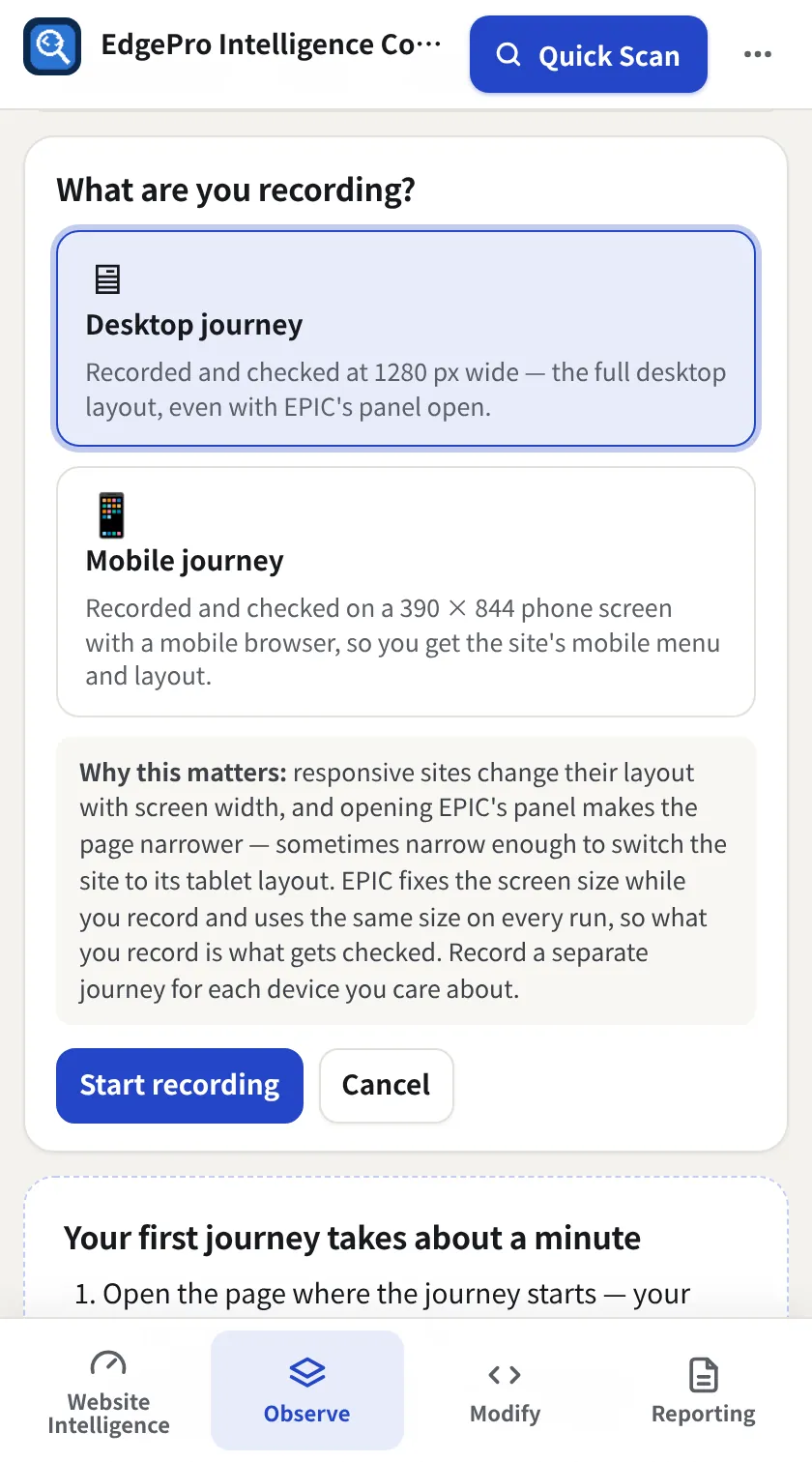
Choose desktop or mobile
Open the page where the journey starts, go to Observe → Journeys and click Record a journey. Pick Desktop journey (1280 px) or Mobile journey (390 × 844 phone screen), then Start recording.
- 2
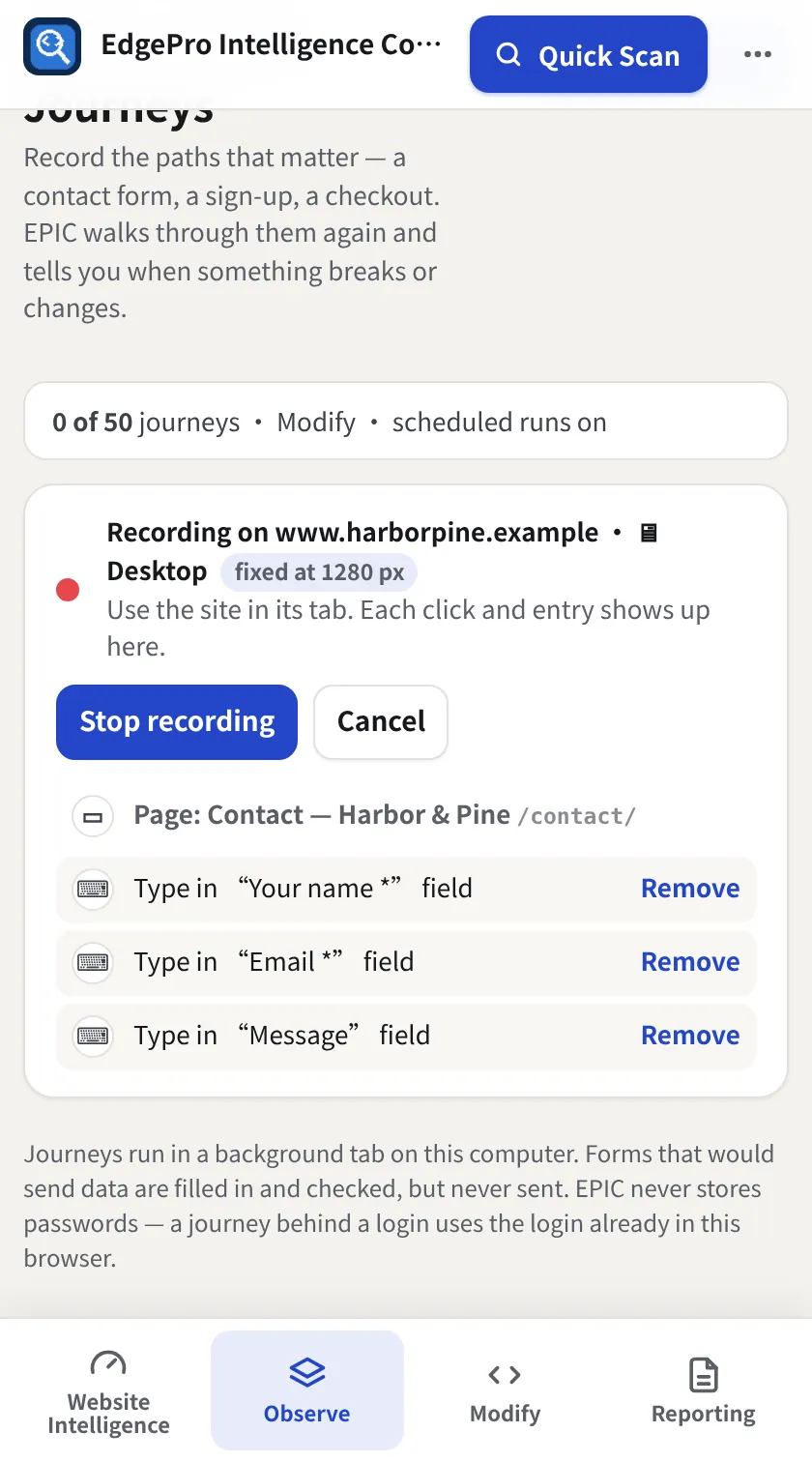
Do the journey
Use the site as normal. Each click and field appears in the list; Remove drops a step.
- 3
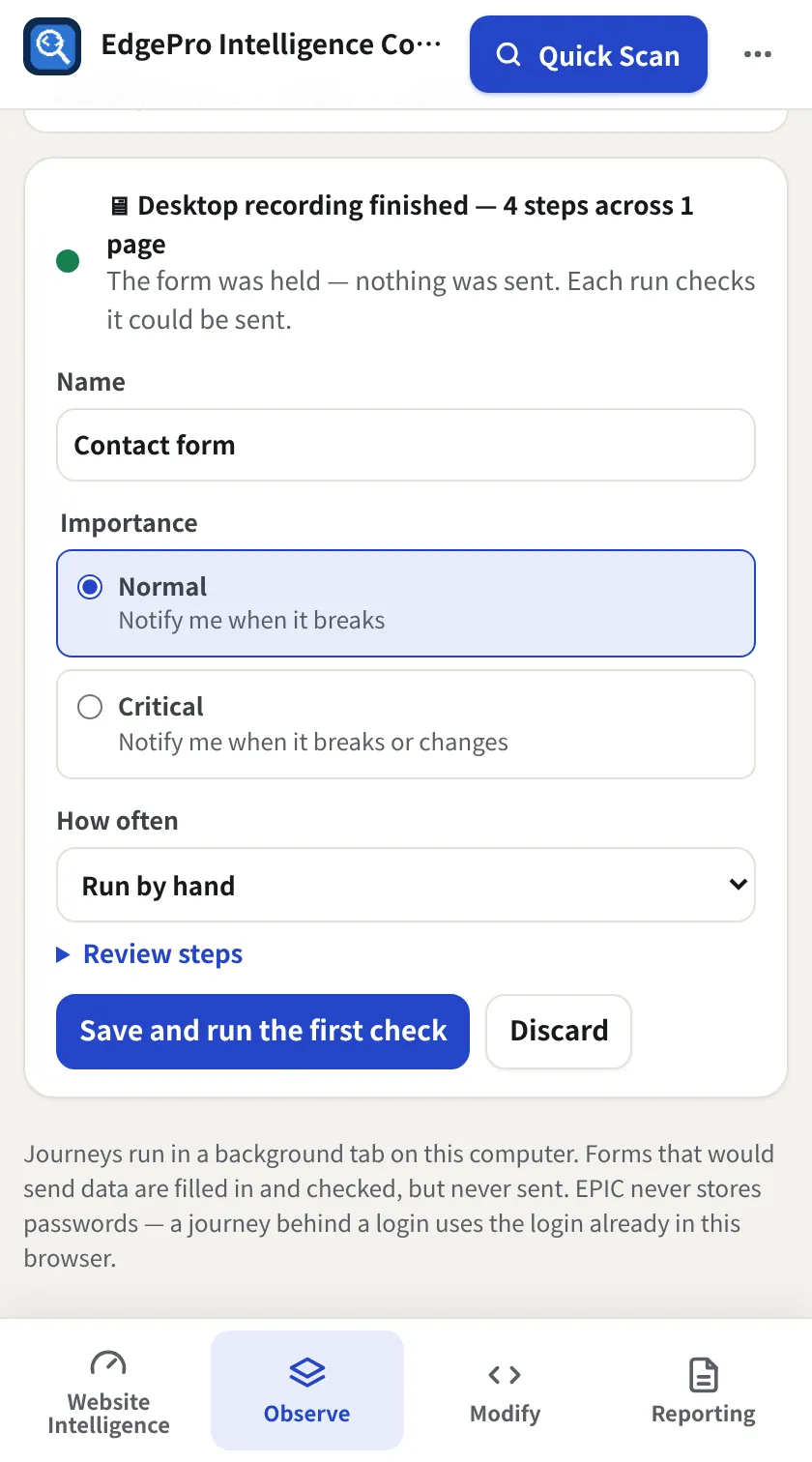
Submit safely
When you press the form's button EPIC holds it: it checks the form could be sent but nothing is sent. Name the journey, set Importance and How often, then Save and run the first check.
- 4
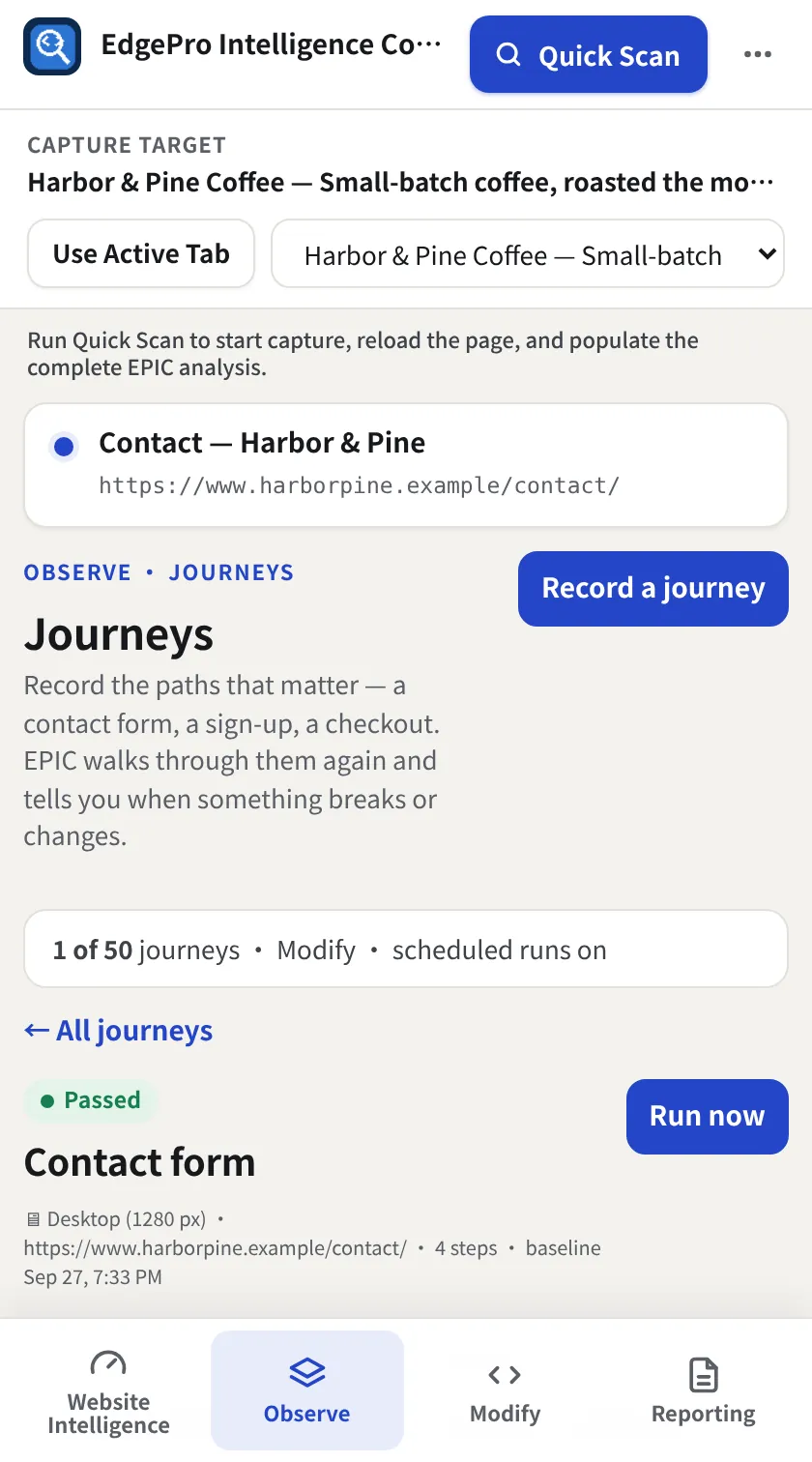
The baseline
The first run is the baseline: Passed, with a screenshot of each step. Run now re-checks it anytime.
- 5
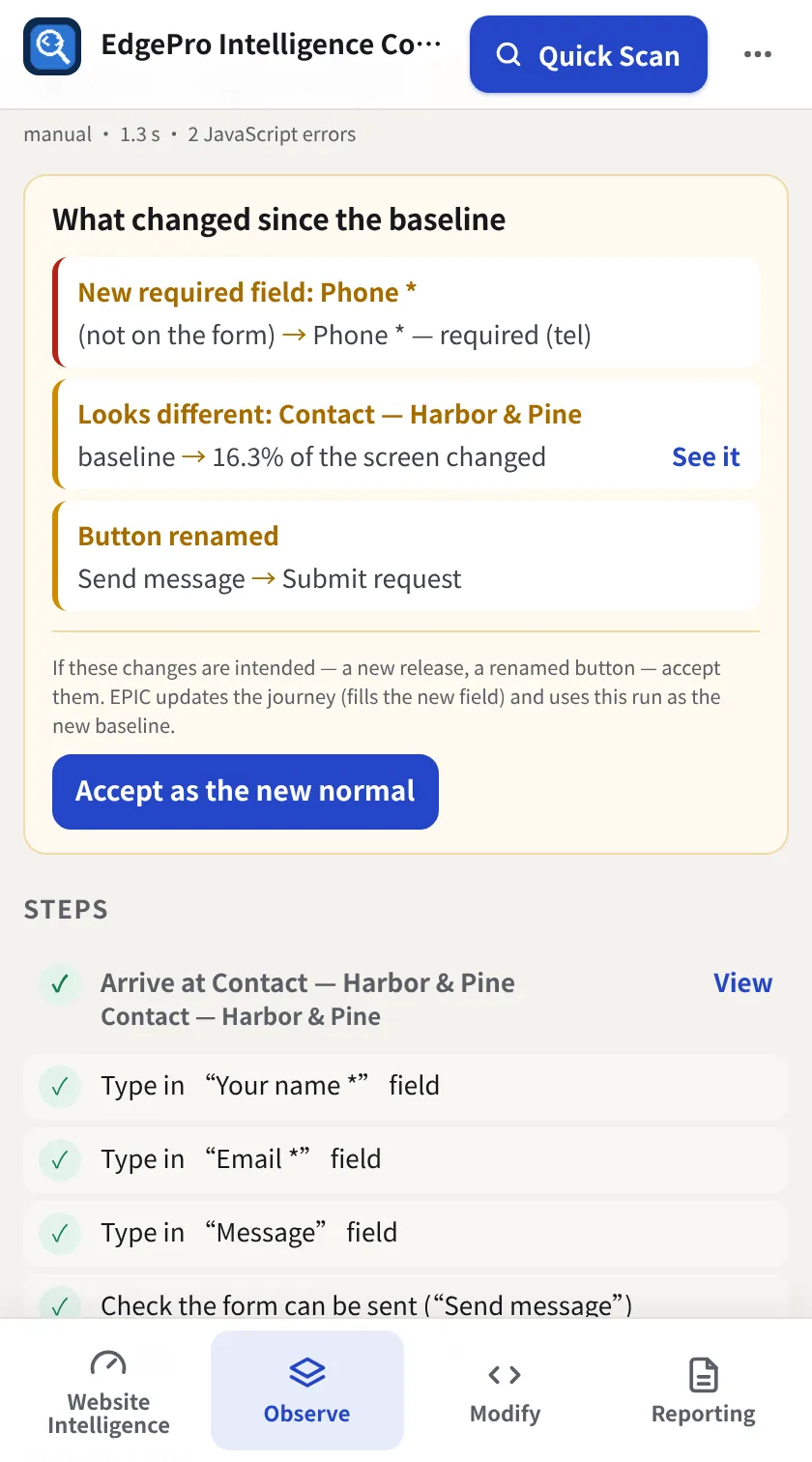
When something changes
If a release adds a required field, renames a button or changes the page, the run says Passed with changes and lists exactly what changed.
- 6
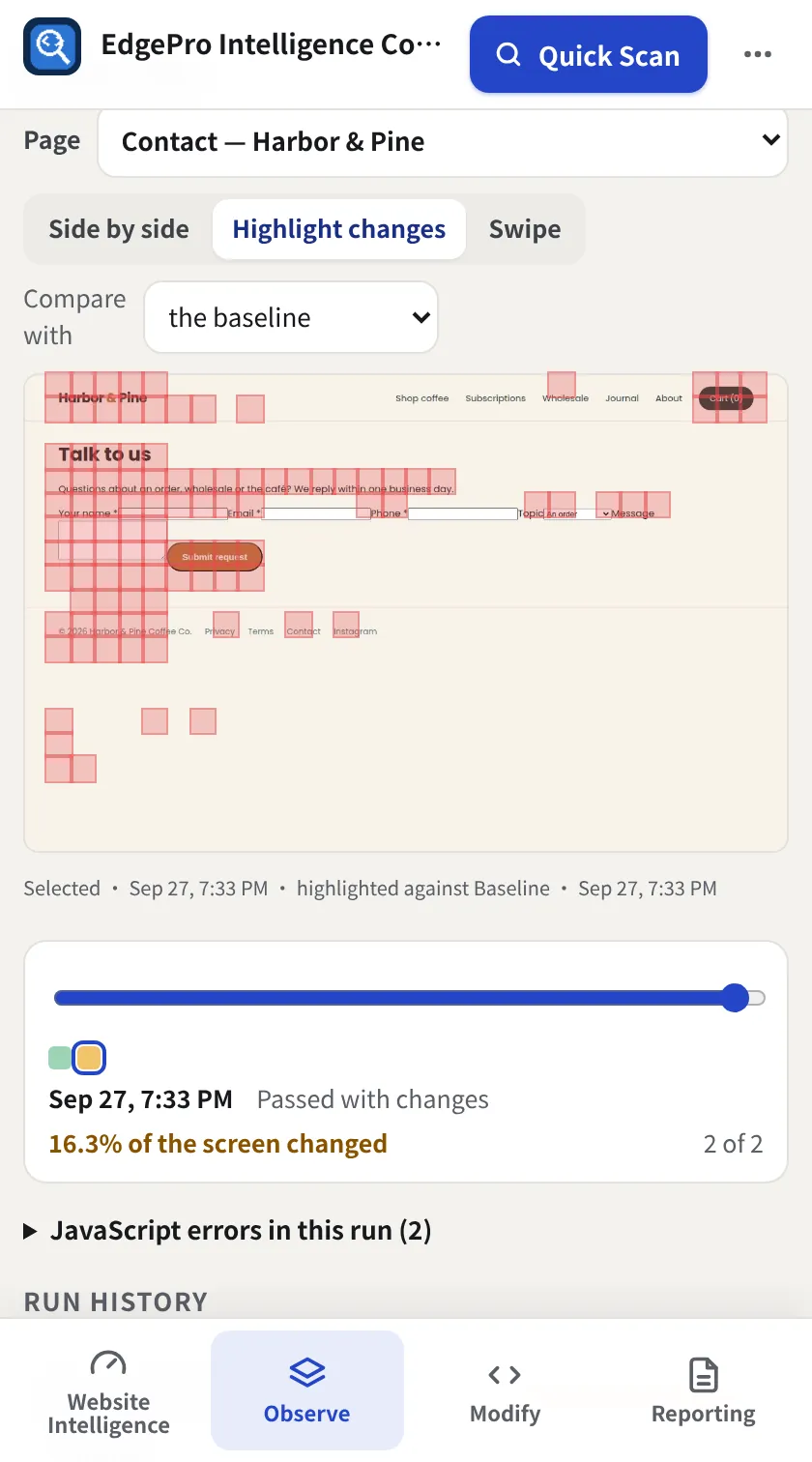
Use the visual lens
Compare with the baseline Side by side, Highlight changes (red blocks show what moved) or Swipe.
- 7
Accept or fix
If the change was intended, click Accept as the new normal. If not, you know exactly what broke.
- Free: 1 journey, run by hand. Observe: 10 scheduled. Modify: 50 scheduled.
- Passwords are never recorded, and forms are never submitted.
- A journey stops at the first step that sends data, such as a form's button or a script-driven button such as “Add to cart”. EPIC checks that step is ready and holds it.
- A form embedded from another service (in a frame on the page) is held too, but EPIC can't record steps inside it yet.