
Inspect requests and export a HAR
Every request from the Quick Scan, with filters, per-request detail and HAR/CSV export.
- 1
Open Network
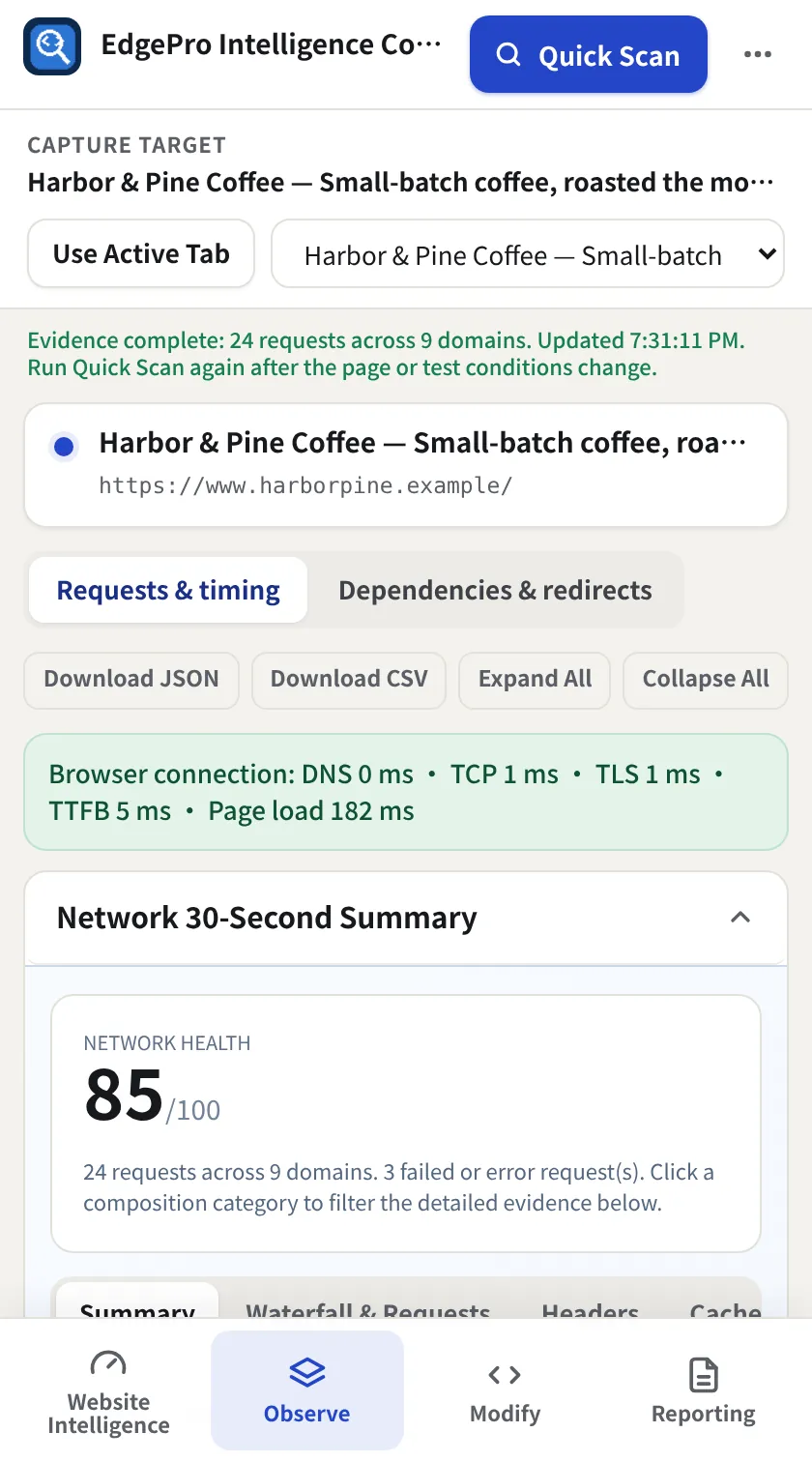
Go to Observe → Network and keep Requests & timing selected. The Network 30-second summary gives a health score and failed requests.
- 2
Filter
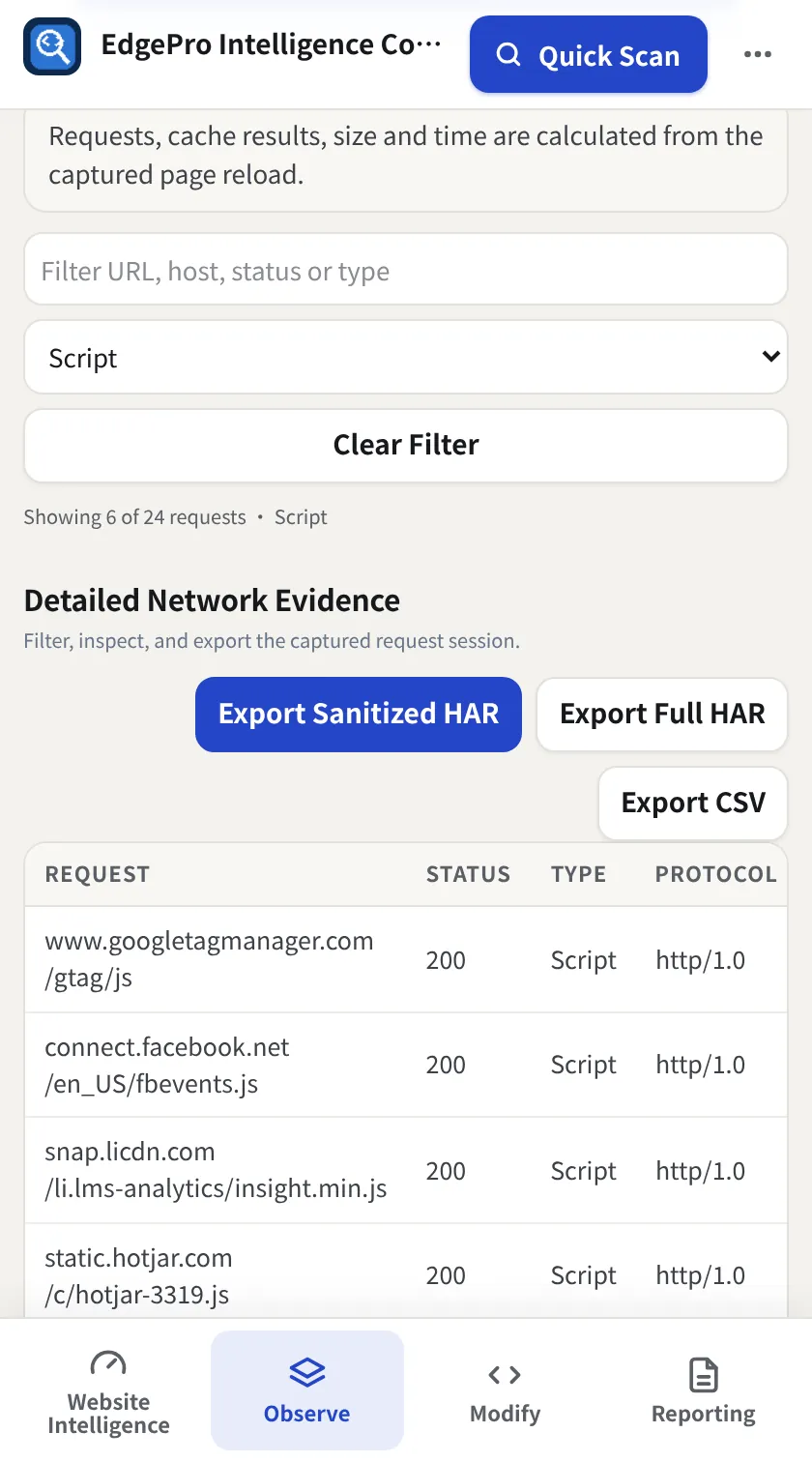
Type in Filter URL, host, status or type and/or pick a type (Script, Image, …). The line under the filter shows Showing X of Y requests. Clear Filter resets both.
- 3
Jump to headers or cache
The Headers tab opens the main document's response headers. Cache filters to cache misses. Summary and Waterfall & Requests scroll to those parts.
- 4
Open a request
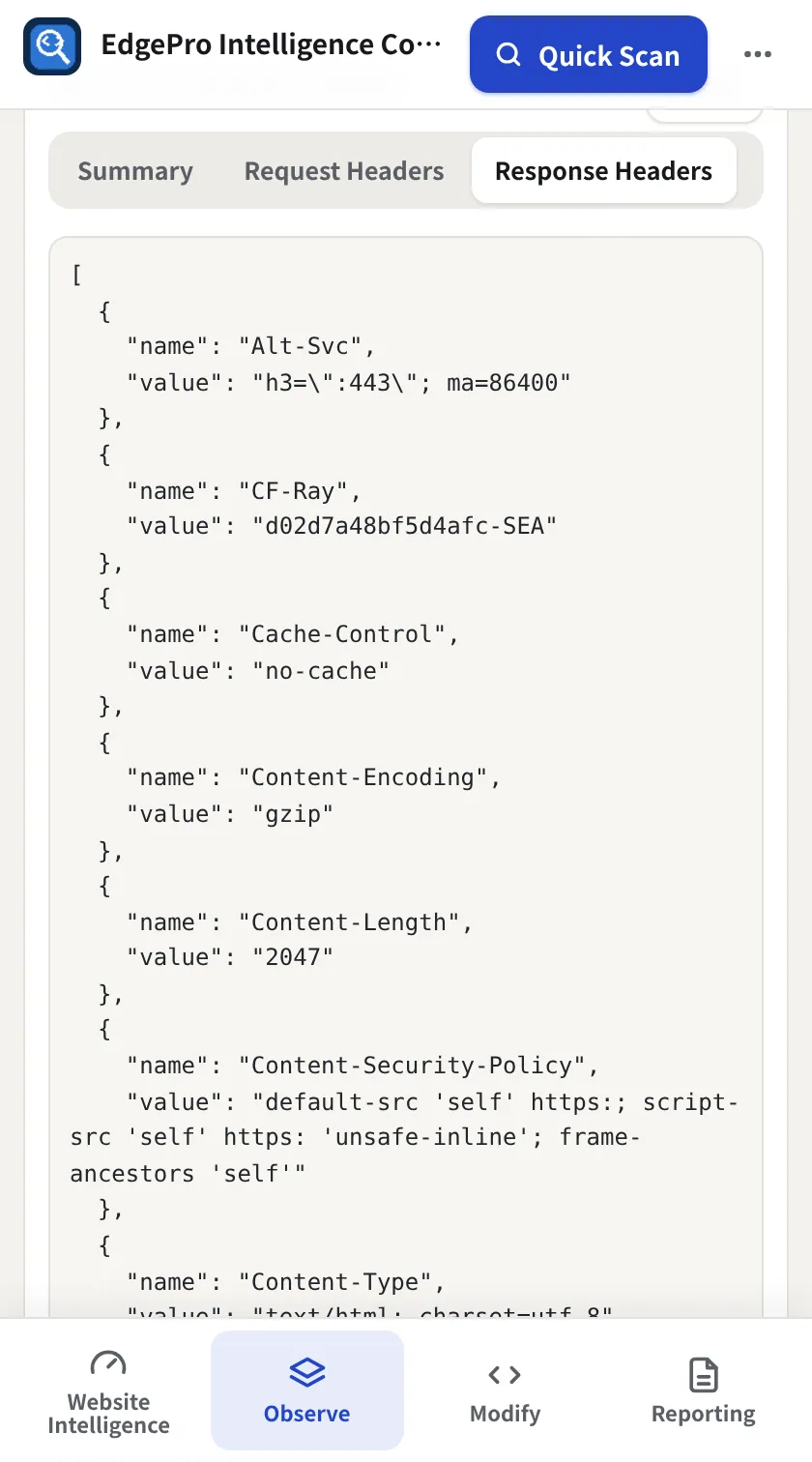
Click any row. The detail panel has Summary, Request Headers, Response Headers, Timing and Security.
- 5
Export
Export Sanitized HAR removes cookies, tokens and auth headers, so it's safe to share. Export Full HAR keeps everything, for your own debugging. Export CSV gives one row per request.
- Redirect hops captured during the scan are included in the HAR.