
← All guides
Check every screen of your web app
App Crawl walks through a web app you're signed in to, one screen at a time, and ranks the problems it finds.
- 1
Set it up
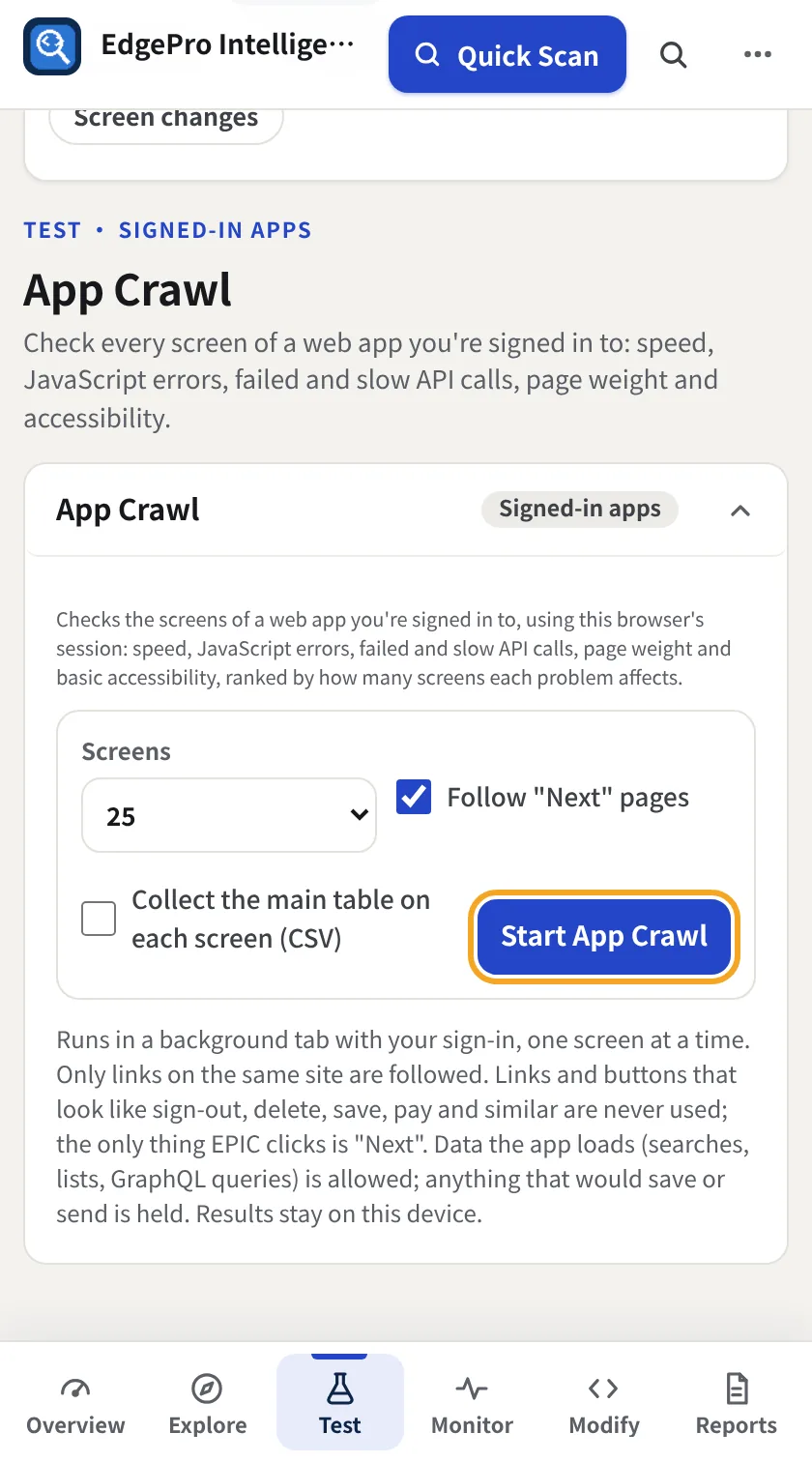
Sign in to your app, open it, and go to Test → App Crawl. Choose how many Screens (10, 25, 50 or 100), whether to Follow "Next" pages in lists, and whether to Collect the main table on each screen (CSV). Click Start App Crawl.
- 2
Read the results
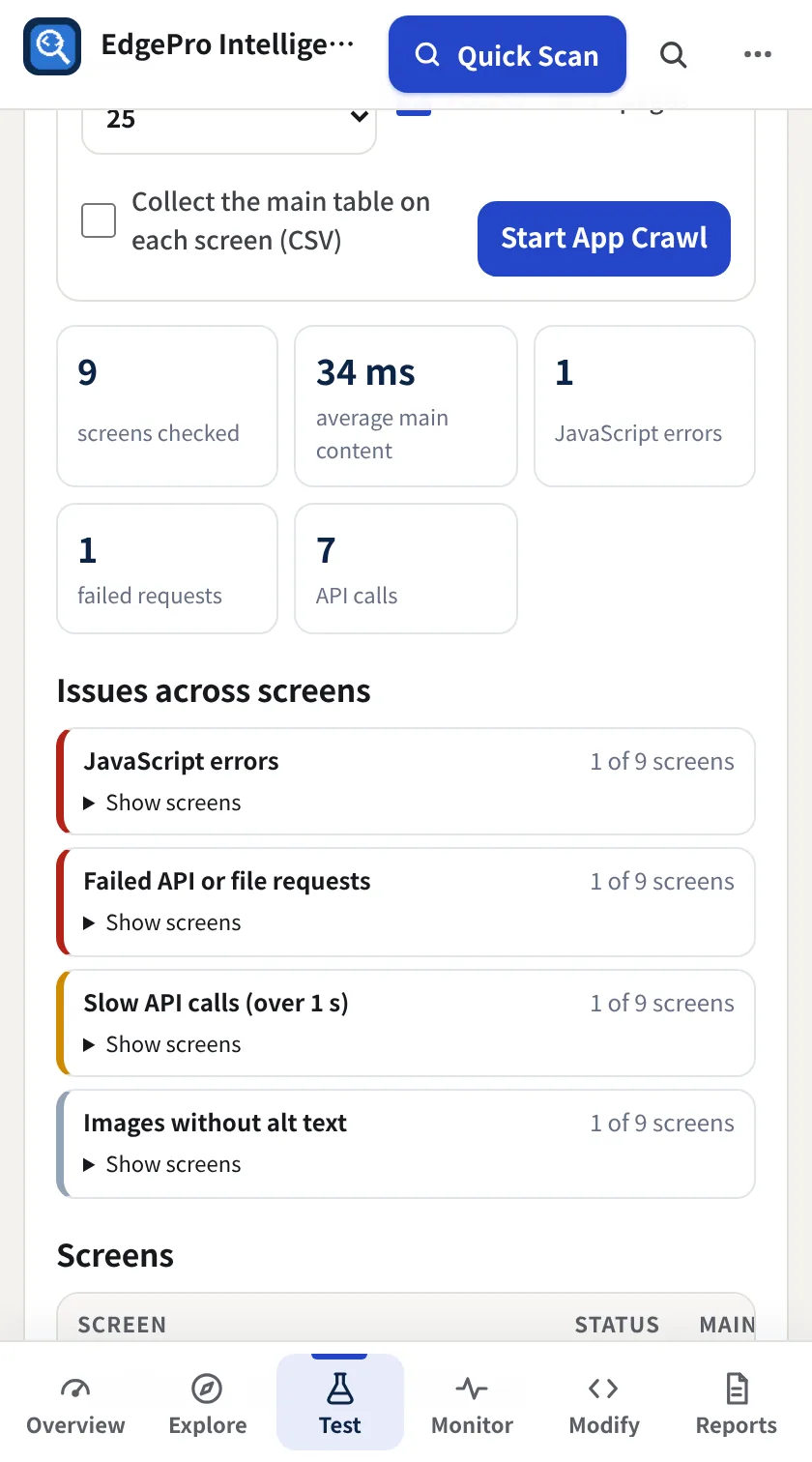
You get screens checked, average time to main content, JavaScript errors, failed requests and API calls, then Issues across screens ranked by how many screens each affects. Show screens lists where.
- 3
Check each screen
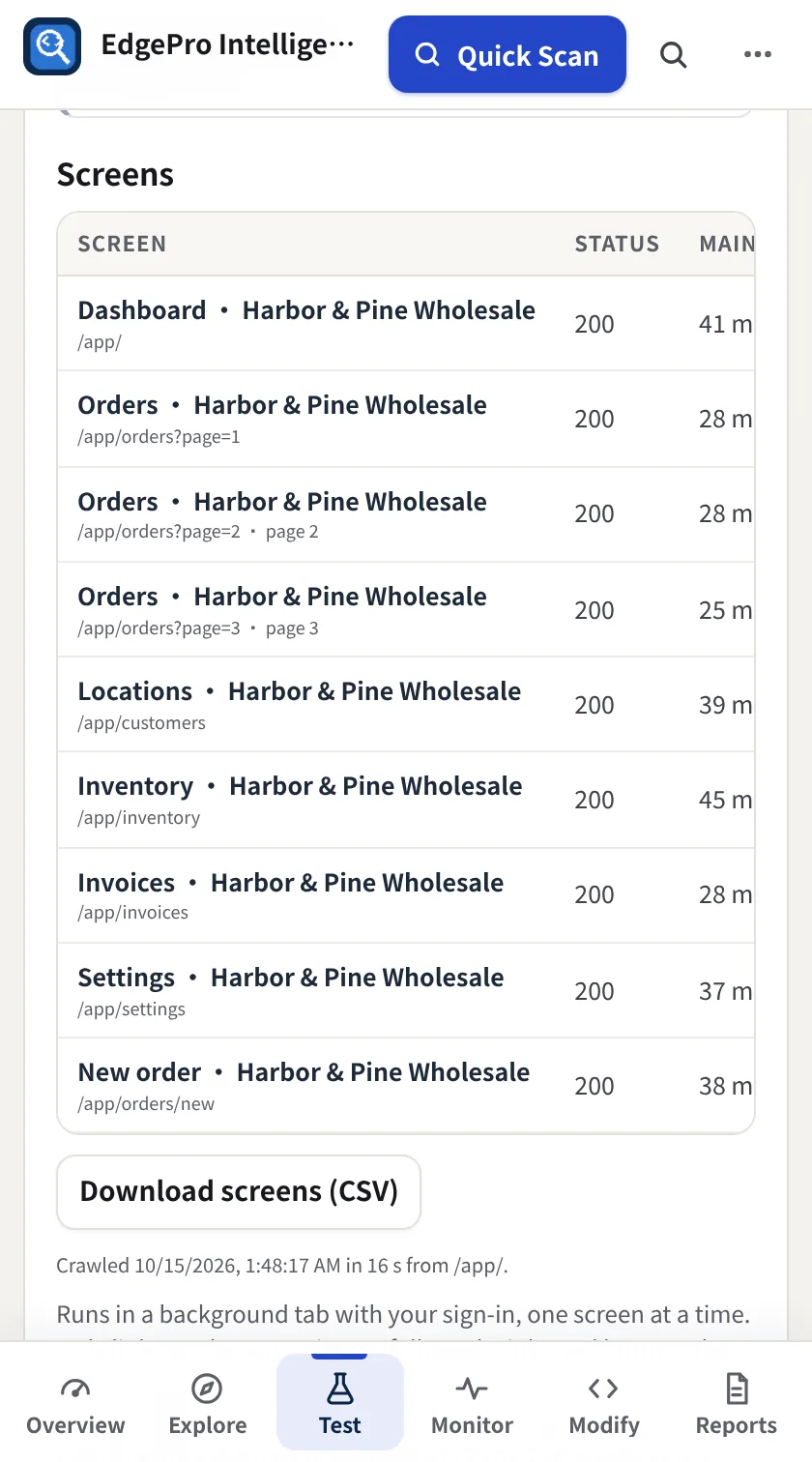
The Screens table lists every screen with its status, speed and problems. Download screens (CSV) saves it, and each collected table has its own CSV.
Good to know
- App Crawl only follows links on the same site. Links and buttons that look like sign out, delete, save, pay and similar are skipped, and requests that would save or send data are held. These safeguards cover common patterns, not every way an app can change data, so crawl apps you're authorized to test, ideally a test or staging copy.
- If the app sends EPIC to a sign-in page, the crawl stops and says Sign in needed.
- Runs in a background tab with your sign-in, and results stay on your device.
Related guides
Observe + Reporting2 minSee every API your app callsAn inventory of the API calls your screens make, how each is protected, what it returns and what changed since earlier scans.Observe + Reporting3 minCompare what two roles can seeSave the same screen as two roles and see what the one that should see less can still see or do.Observe + Reporting3 minScan a whole siteScan up to 100 pages from the sitemap or links, with broken links and redirect health.