
← All guides
Set size budgets
Set limits for page size, JavaScript, images and more, and EPIC checks every scan against them.
- 1
Set your limits
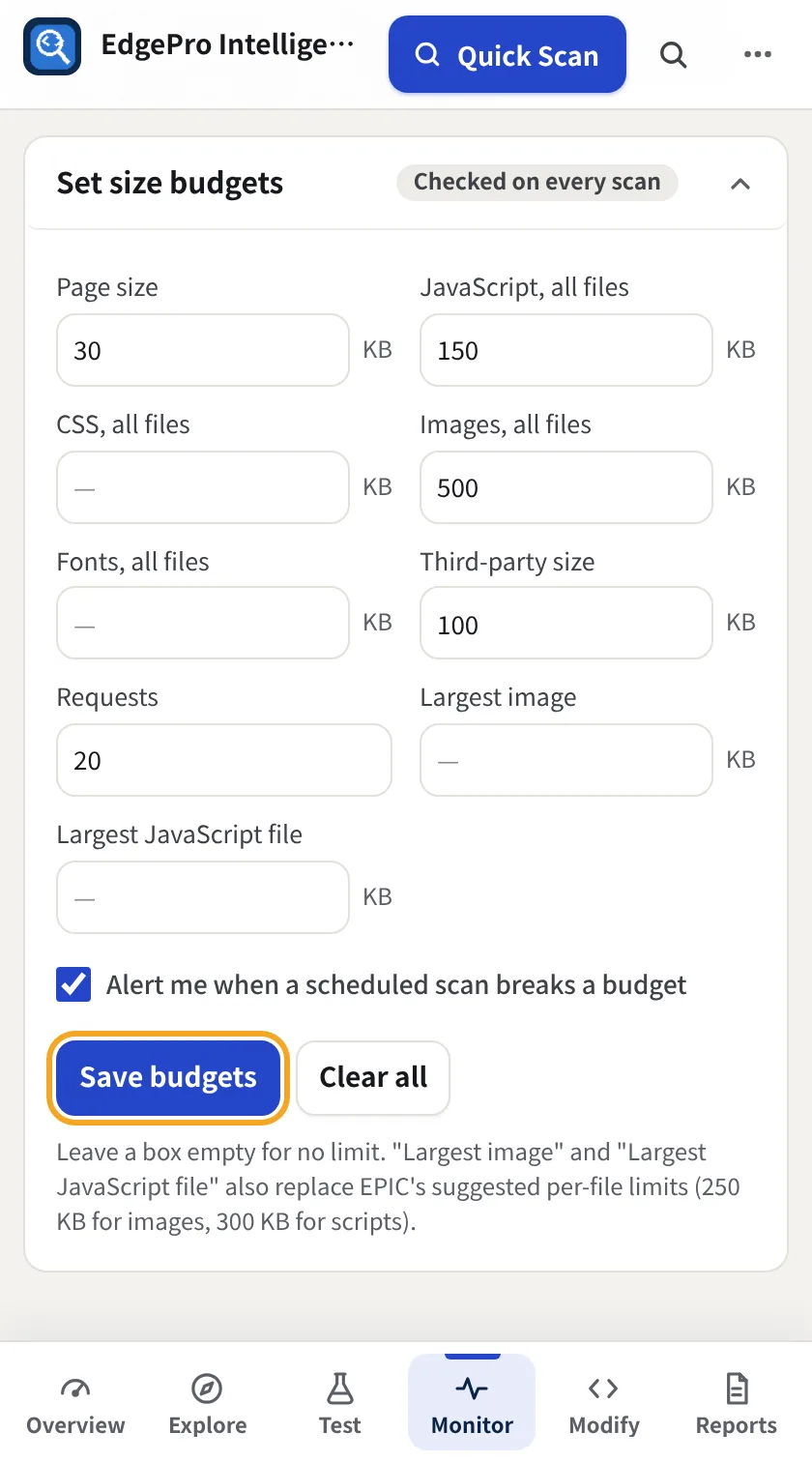
Go to Monitor → Size budgets. Fill in the limits you care about: page size, JavaScript, CSS, images, fonts, third-party size, request count, largest image and largest JavaScript file. Leave a box empty for no limit. Click Save budgets.
- 2
See them on every scan
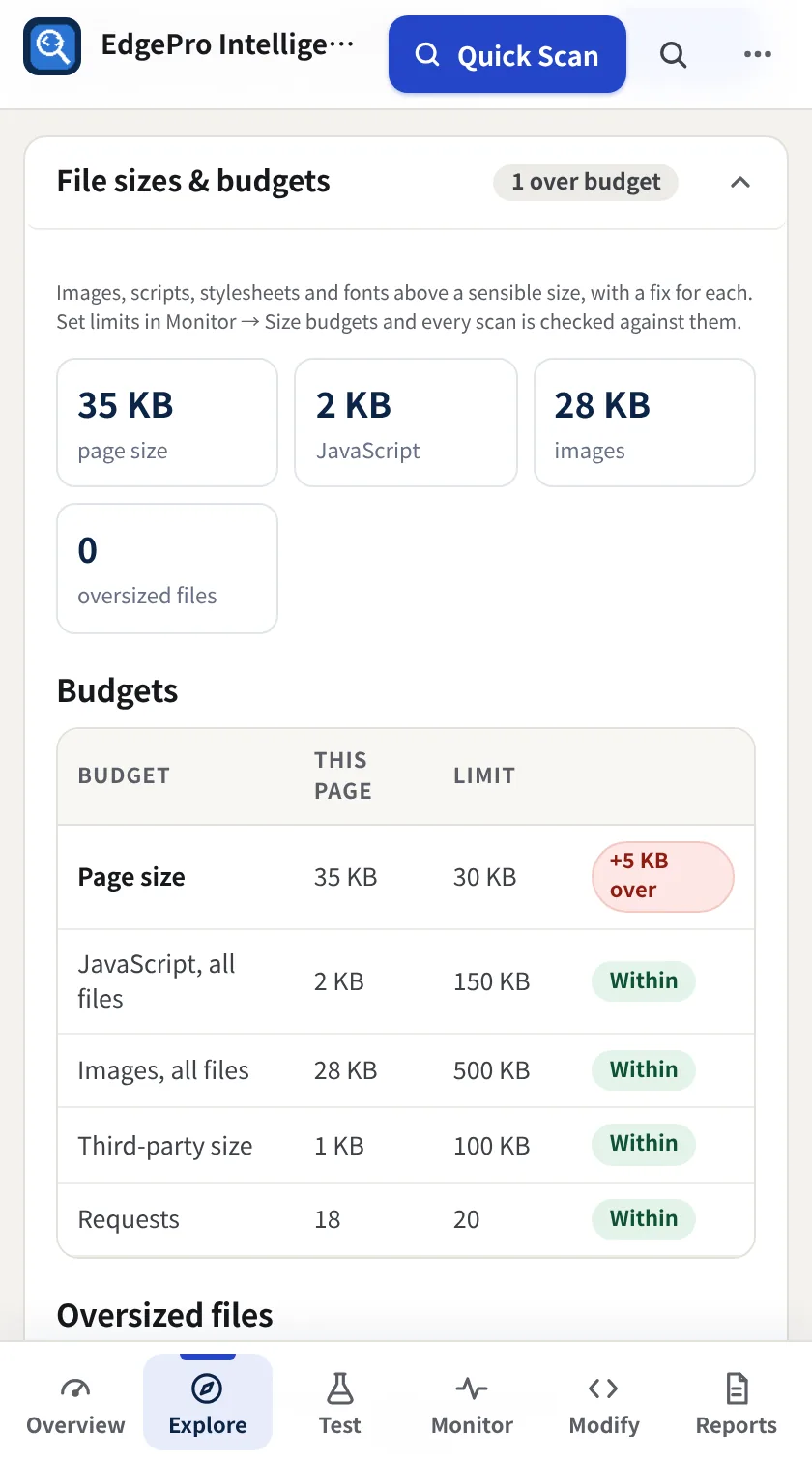
Every Quick Scan, scheduled scan and App Crawl is checked. Explore → Performance → File sizes & budgets shows this page against each budget, and how far over it is.
- 3
Get alerts
Keep Alert me when a scheduled scan breaks a budget ticked. A broken budget is also logged in your history.
Related guides
Observe + Reporting2 minCheck a release before and afterSave a snapshot before you ship, run Quick Scan after, and see every regression and improvement.Observe + Reporting3 minUse History, the Change Log and Visual TimelineEvery scan is kept so EPIC can tell you what changed, when, and show it side by side.