
← All guides
Find your way around
EPIC 1.1 puts everything into six areas along the bottom of the panel, with search when you know what you want.
- 1
The six areas
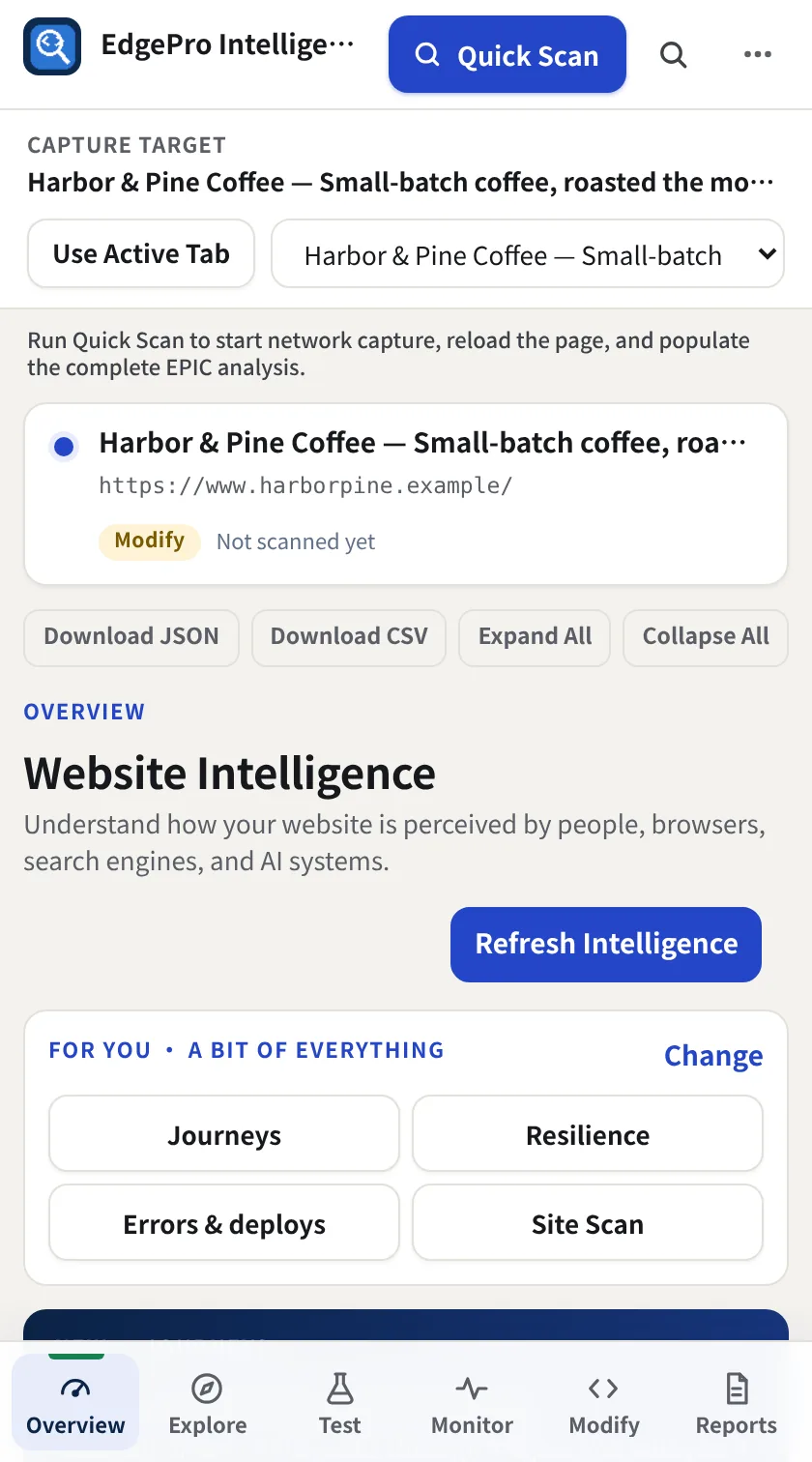
Along the bottom of the panel: Overview (your scores, free), Explore (what the page is made of and how it is seen), Test (scans, crawls, journeys and comparisons), Monitor (history, alerts and size budgets), Modify (change requests and the page in your own browser) and Reports.
- 2
Pick a section
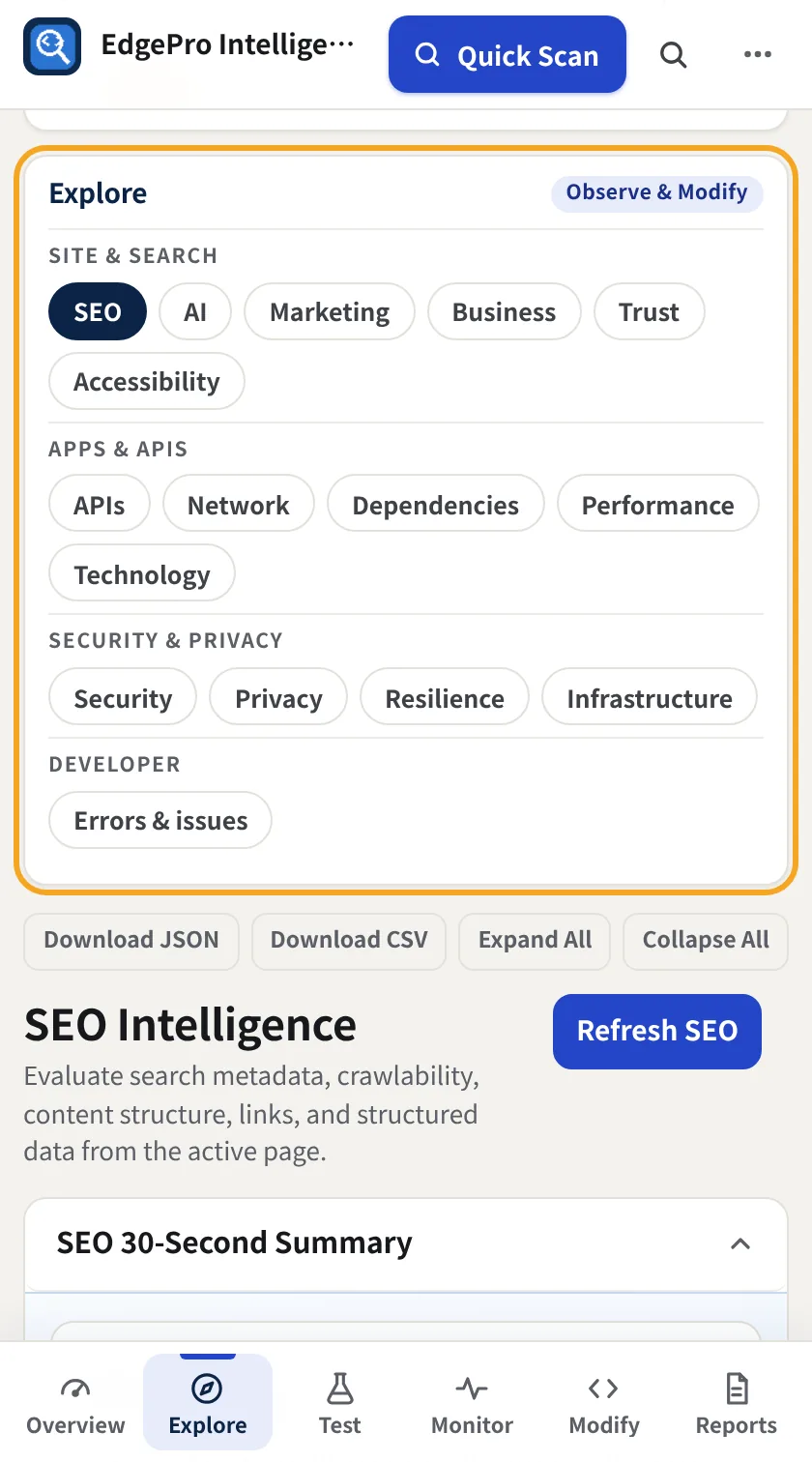
Each area shows its sections as chips at the top, with a badge for the plan it belongs to. Click a chip to open that section. EPIC remembers the last section you used in each area.
- 3
Search
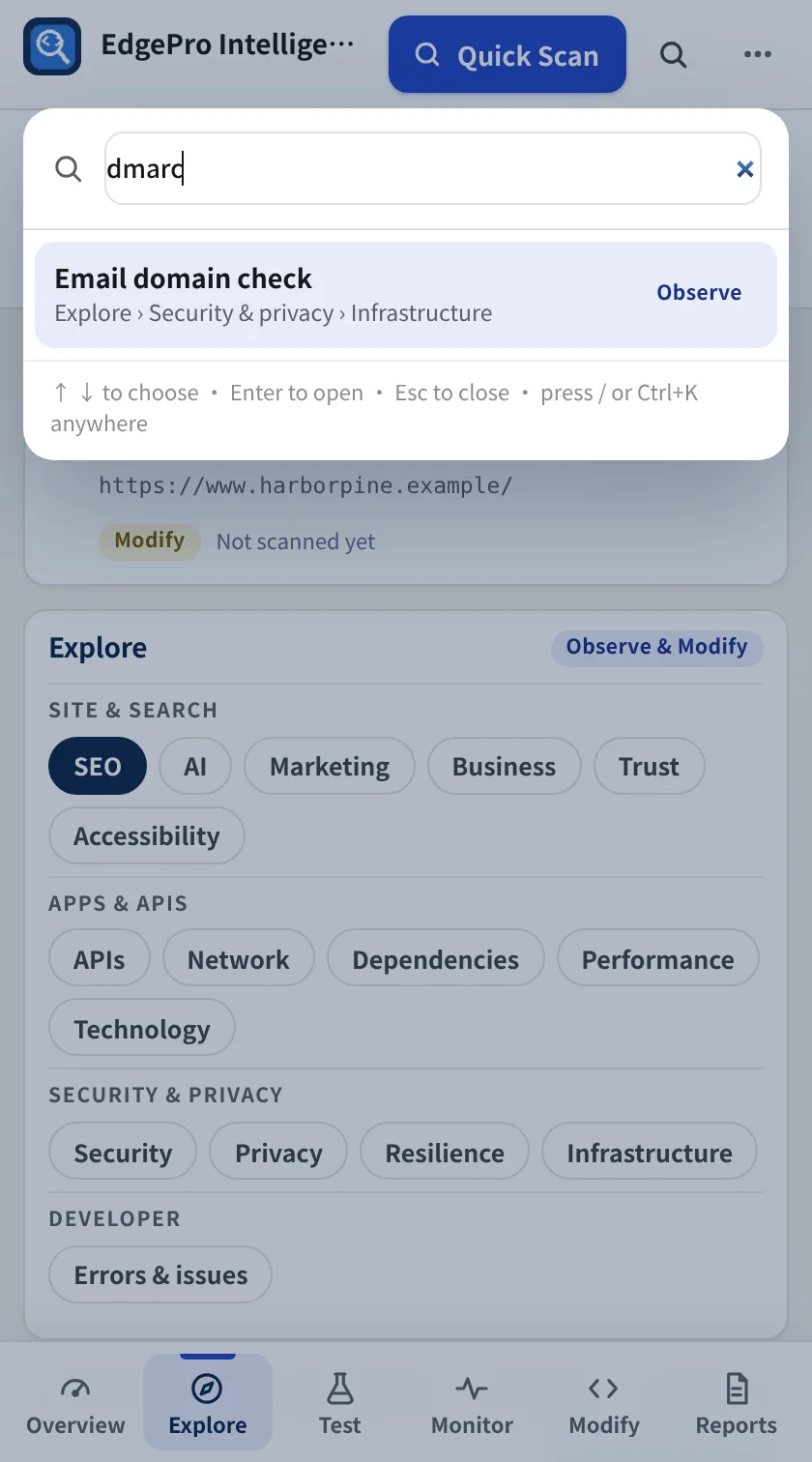
Press / or Ctrl+K (or click the magnifier) and type what you need, such as DMARC, HAR or budget. Use the arrow keys and Enter to jump straight there. Esc closes the search.
Good to know
- The navigation works from the keyboard: Tab moves between areas and chips, Enter opens them.
- Updating from 1.0.4 keeps your license, saved websites, history, rules, snippets and settings.